How to create and set up Review Links Page
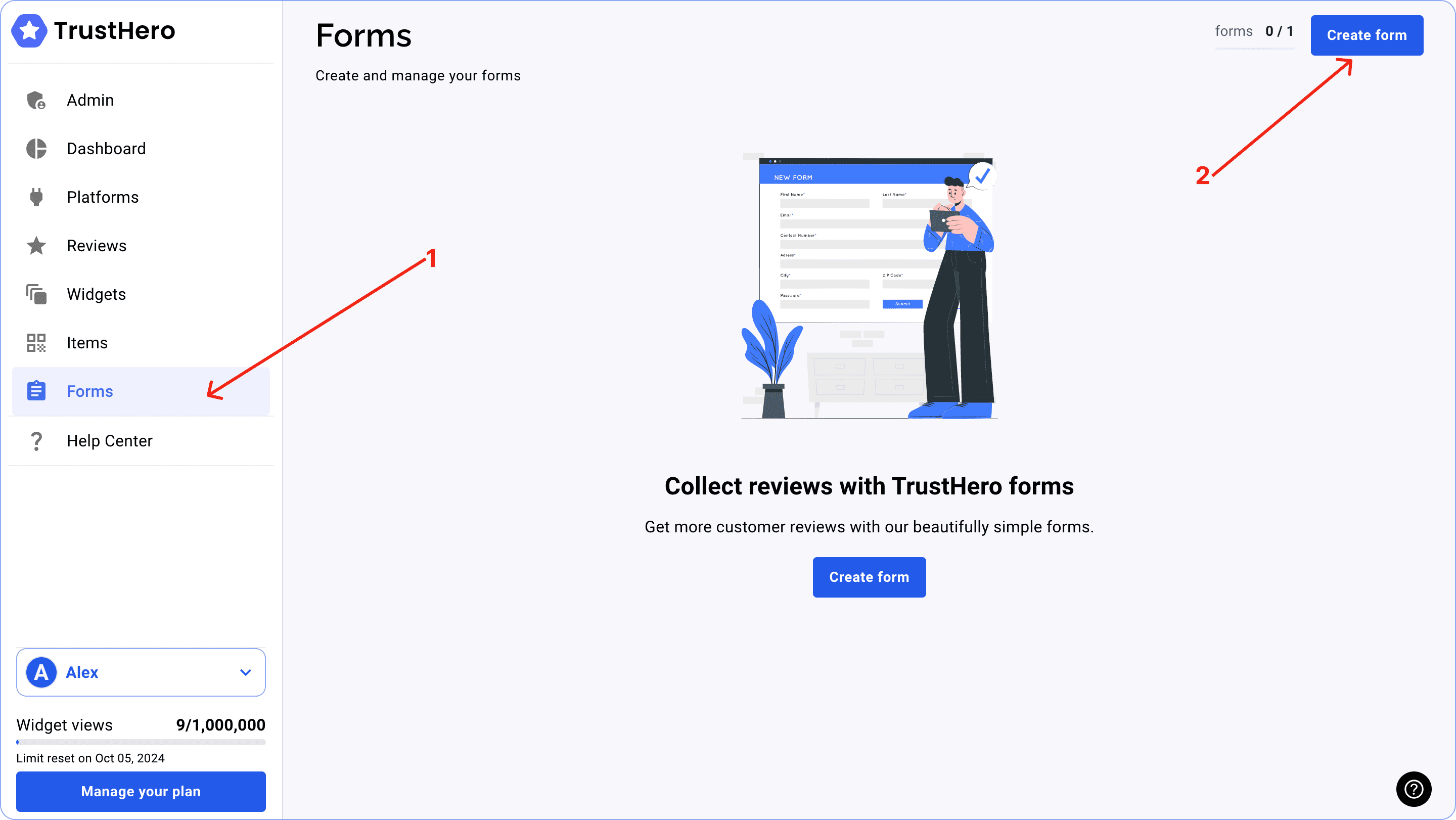
Go to the Forms tab and click Create form.
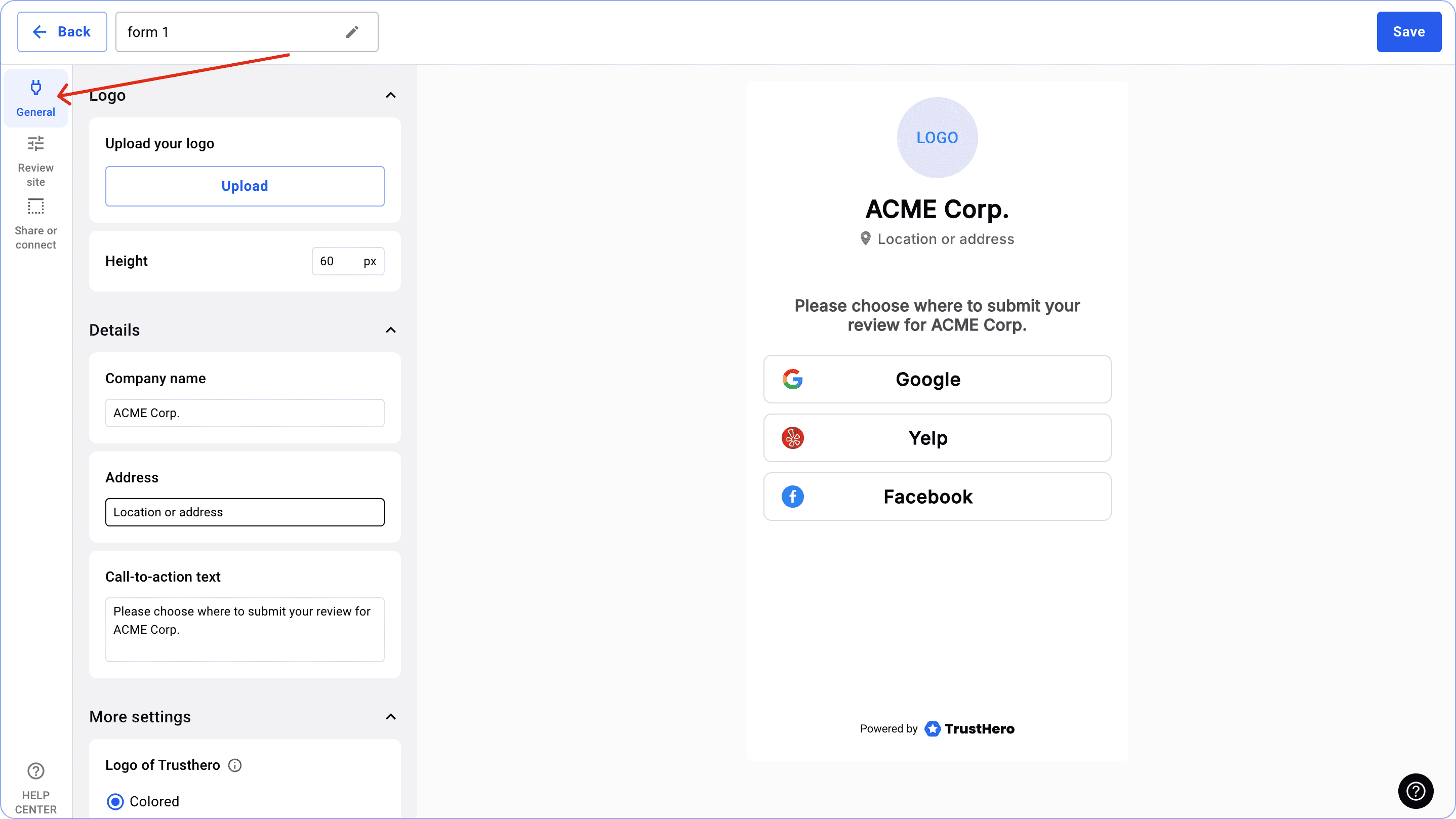
In the Form builder, on the General tab, you can customise the look and feel of your form:
Upload your logo;
Set up the name of your business;
Set up the address of your business;
Set up Call-to-action text;
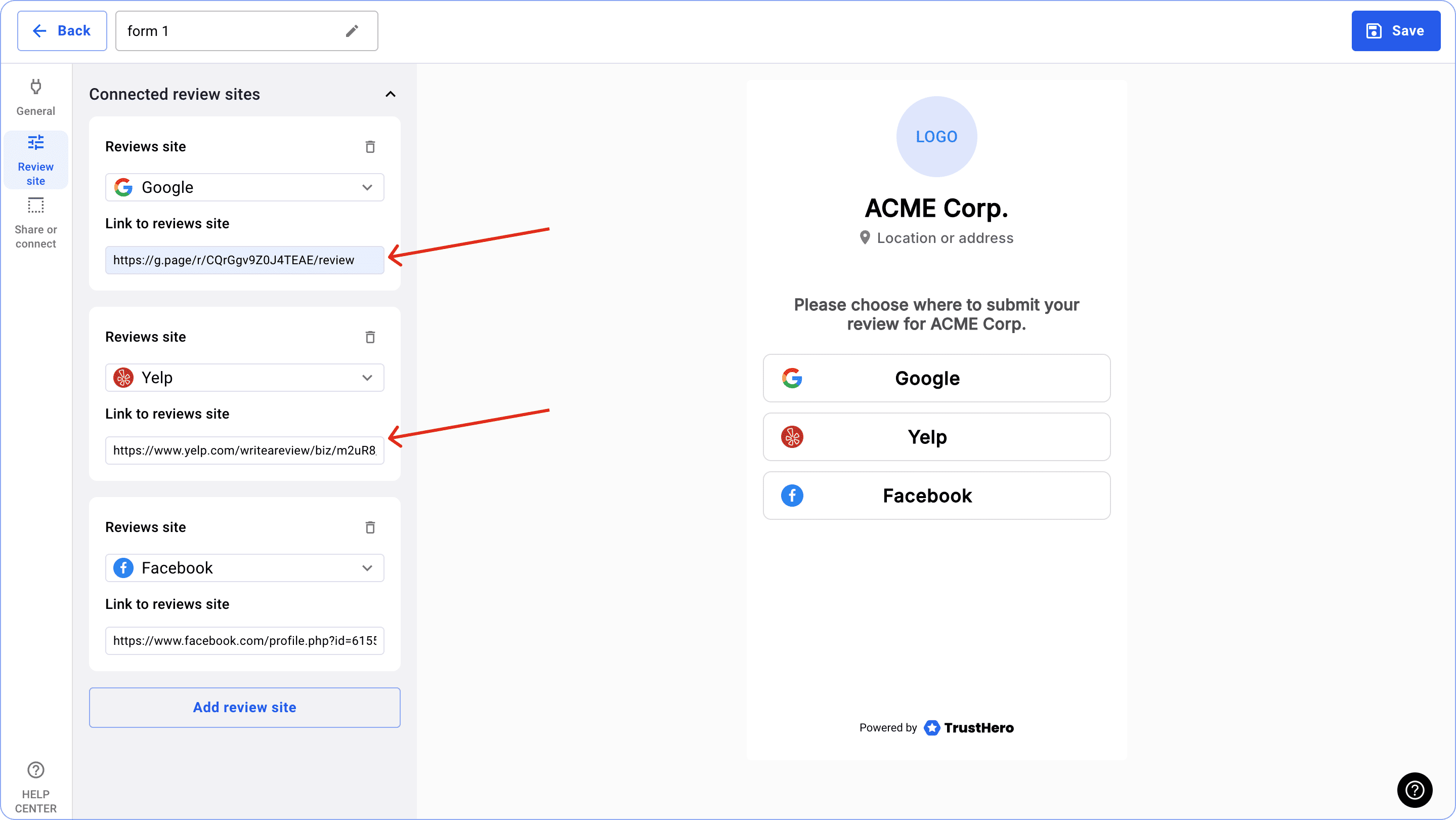
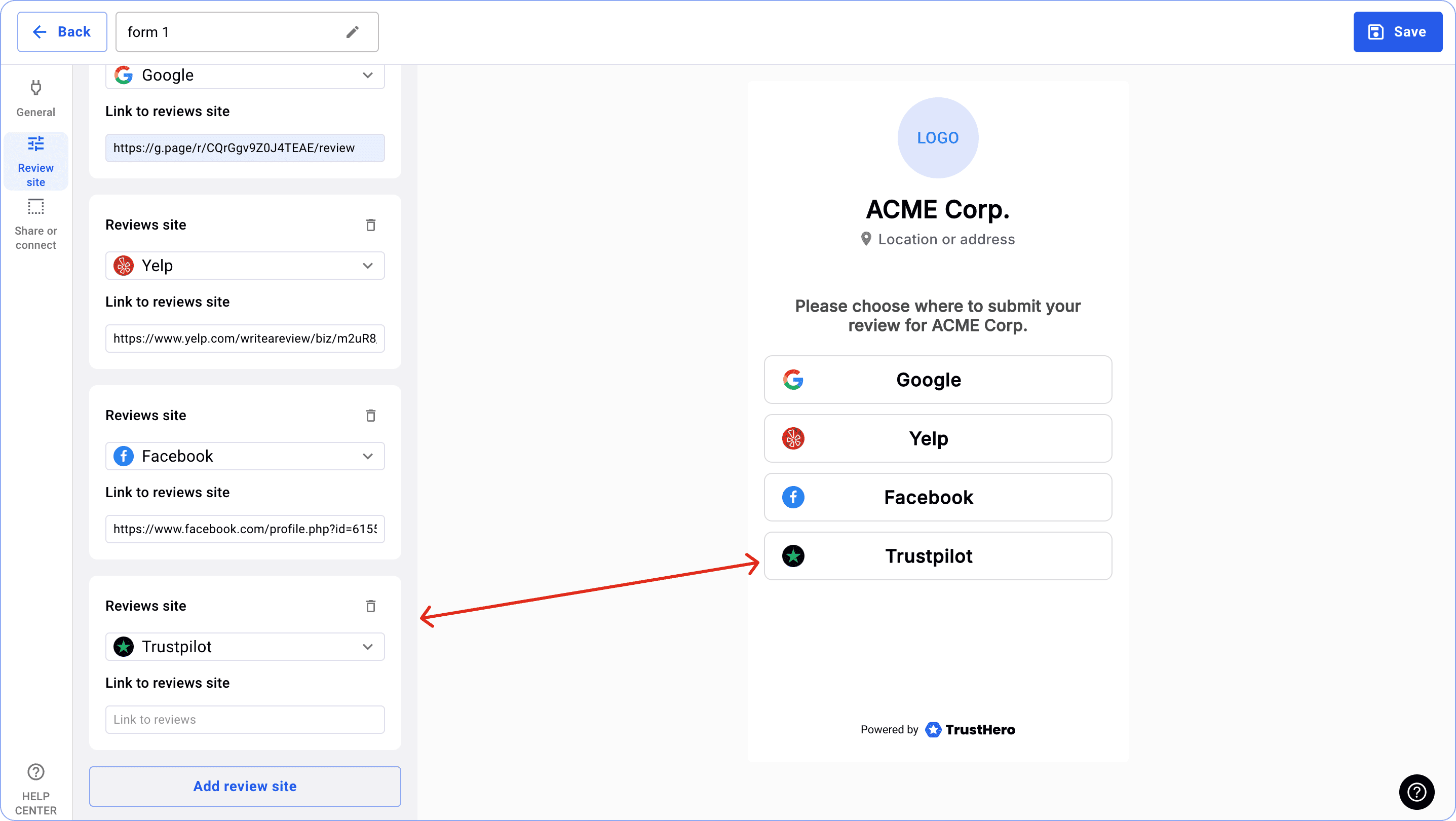
On the Review site tab, you can configure buttons to go to your review pages.
You can add as many buttons as you need.
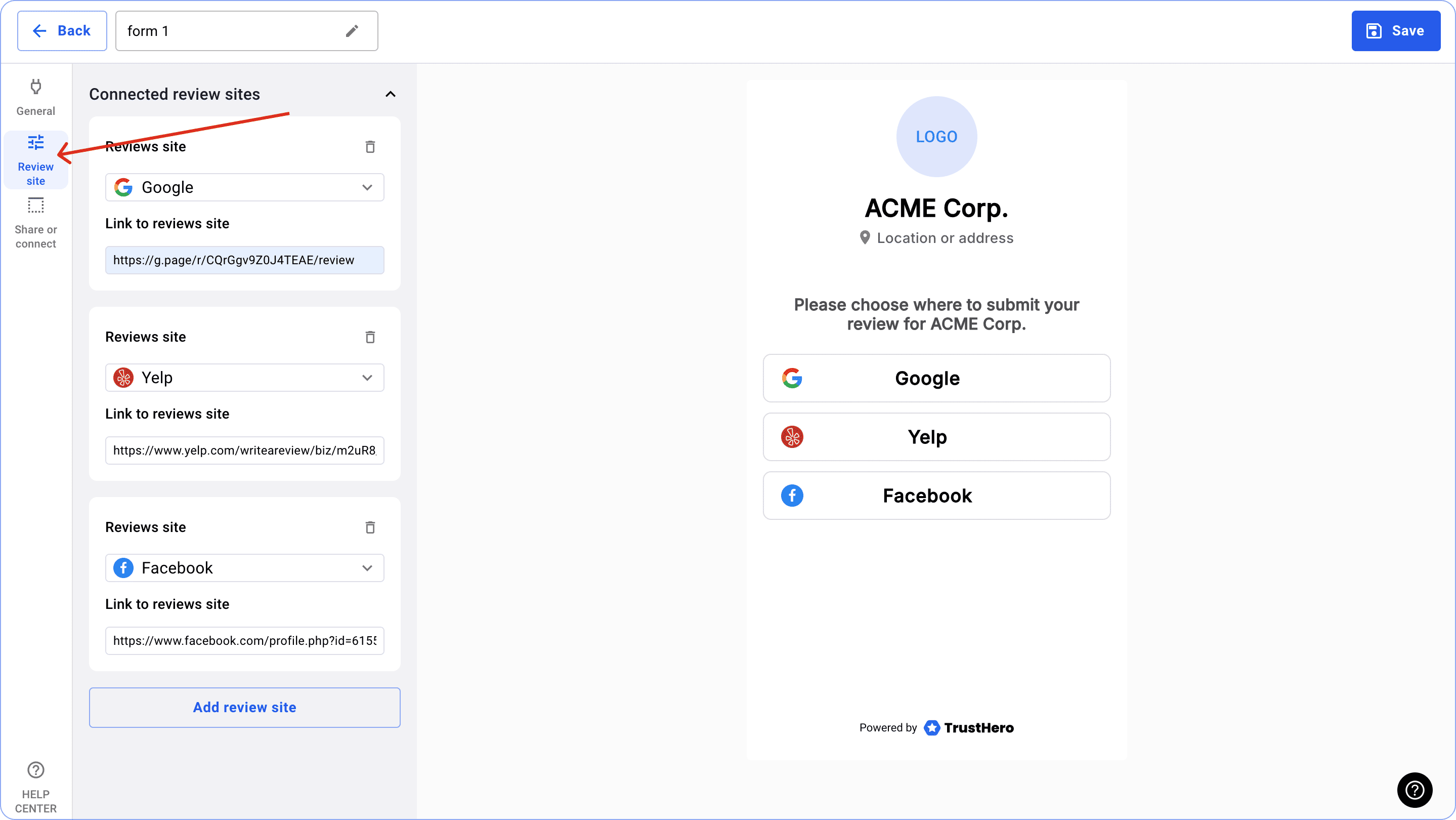
In order for the button to redirect your customer to your testimonial page, you need to add a link to the relevant page.
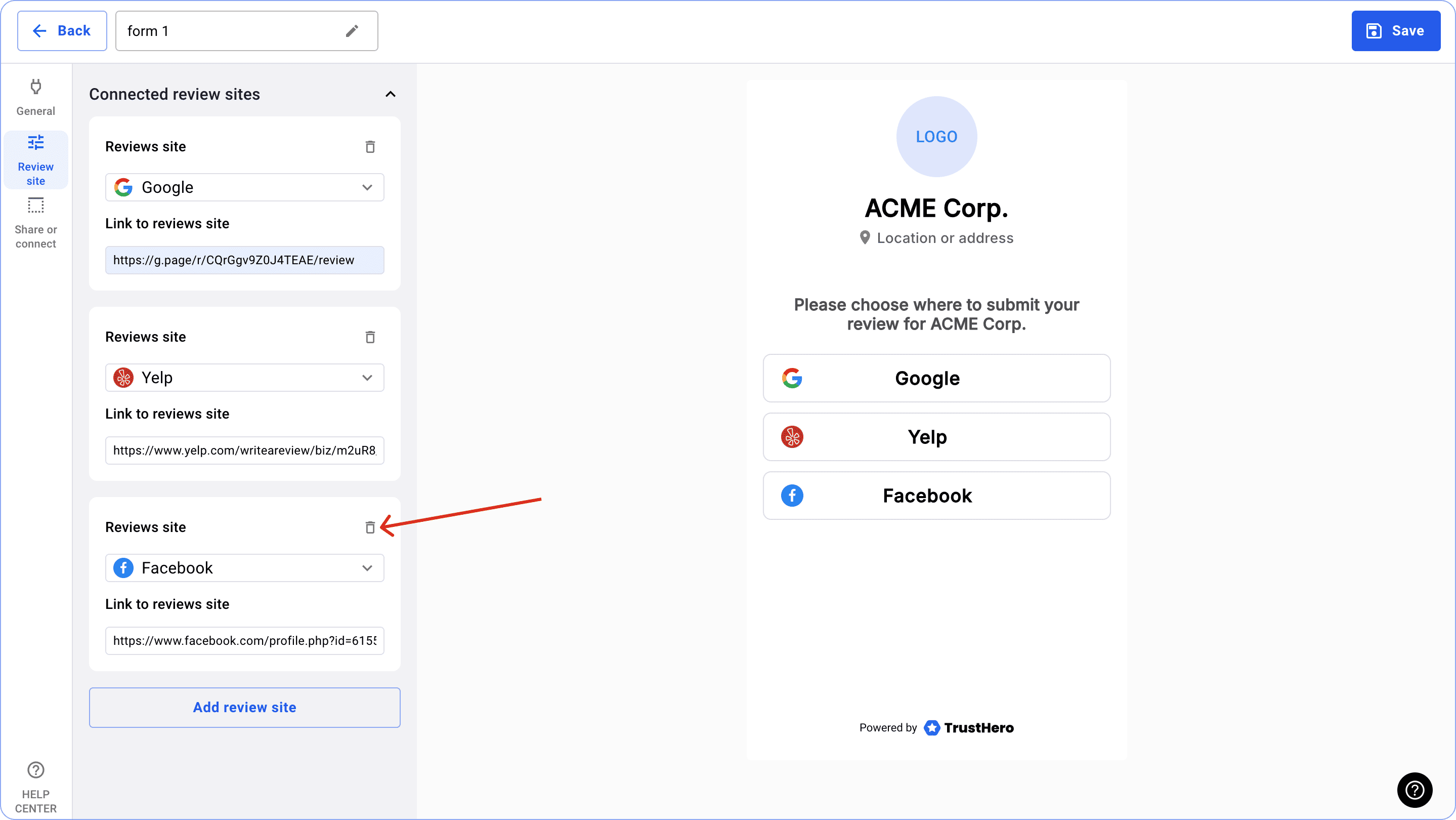
If you need to remove a button, just click on the basket icon.
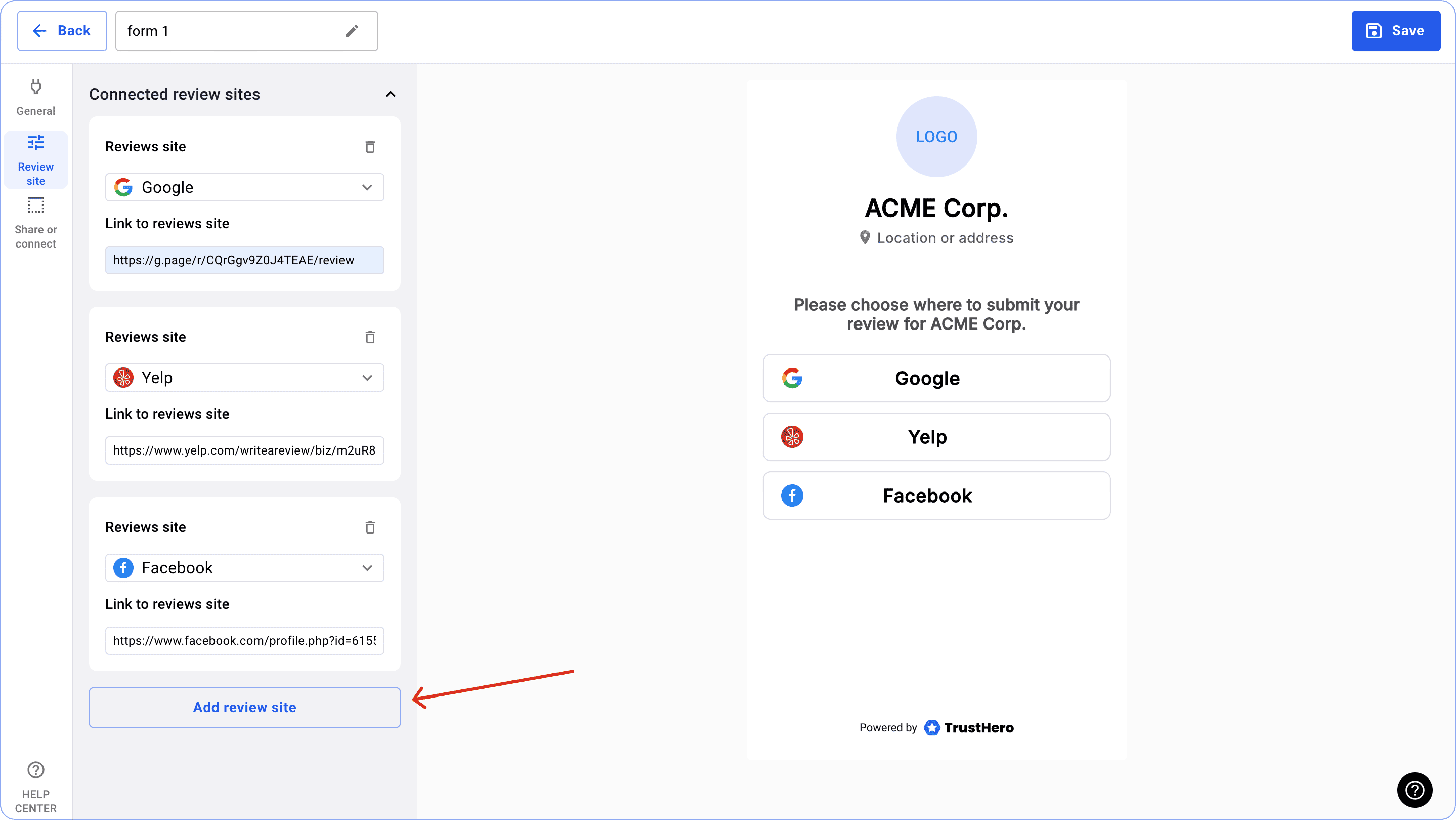
To add a new button click Add review site.
After you have clicked Add review site you need to select the button of the relevant site.
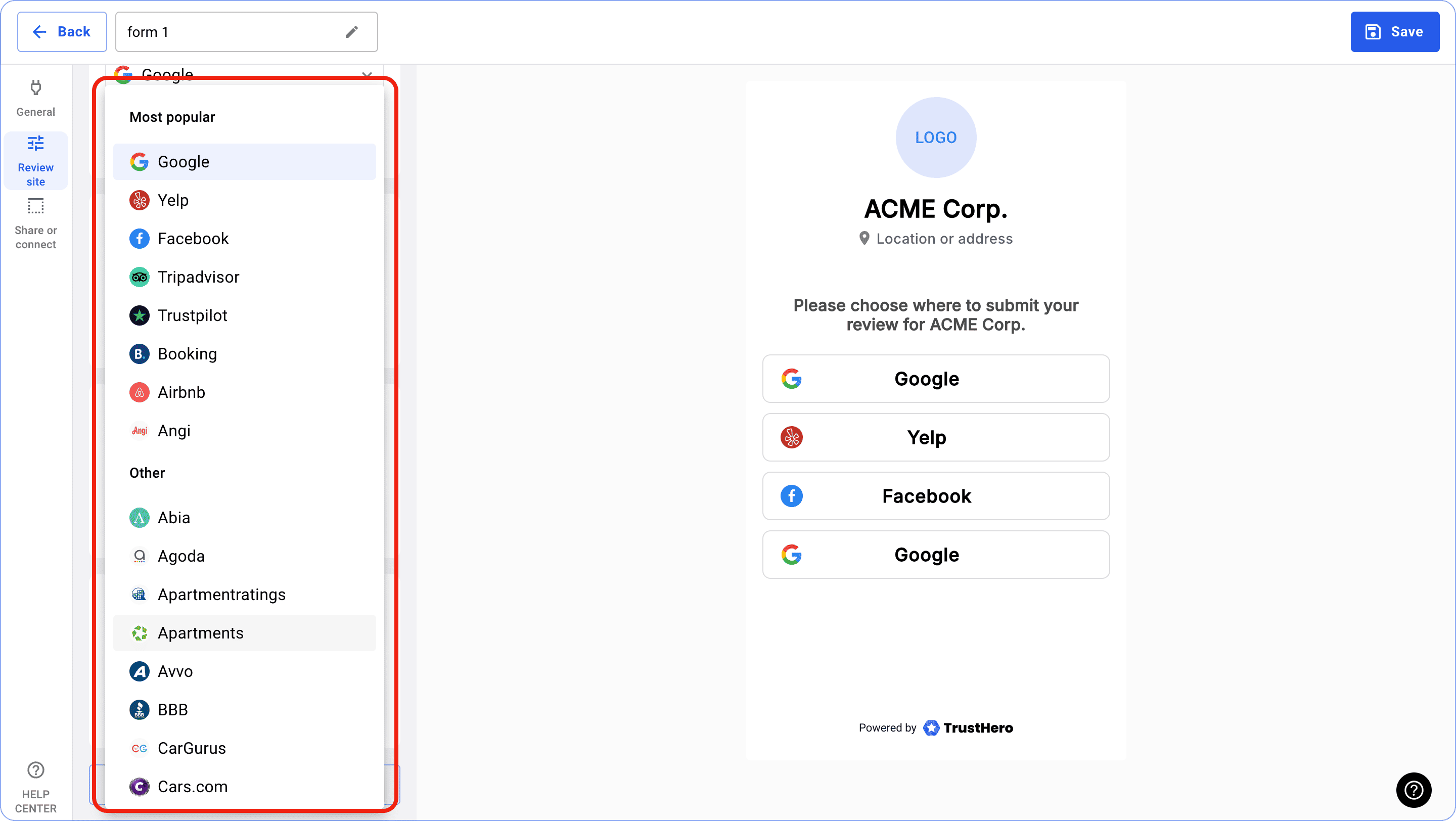
The button with the new Review site will appear at the bottom.
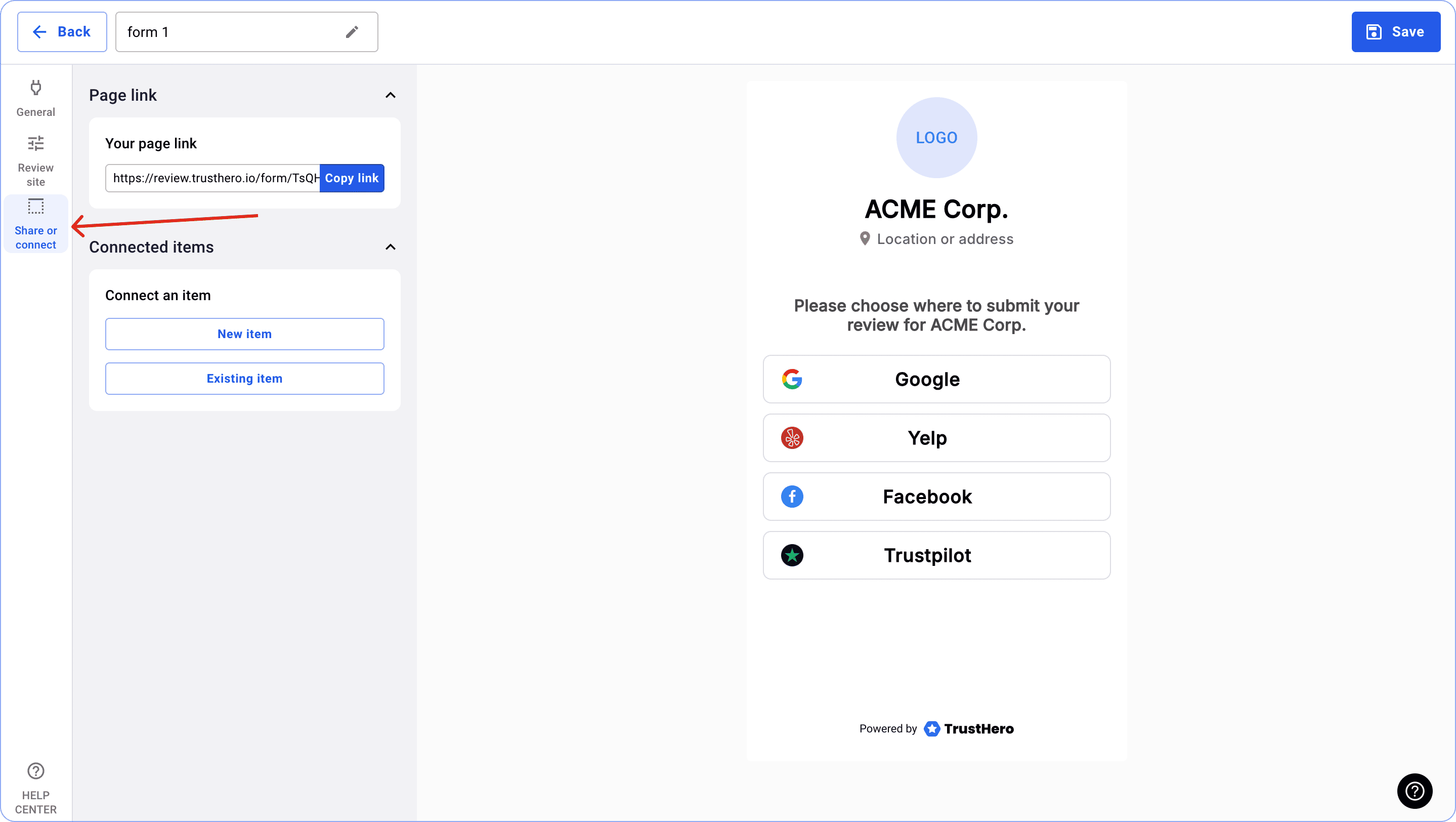
To copy our form link or connect it to your NFC/QR item, click on the Share or connect tab.
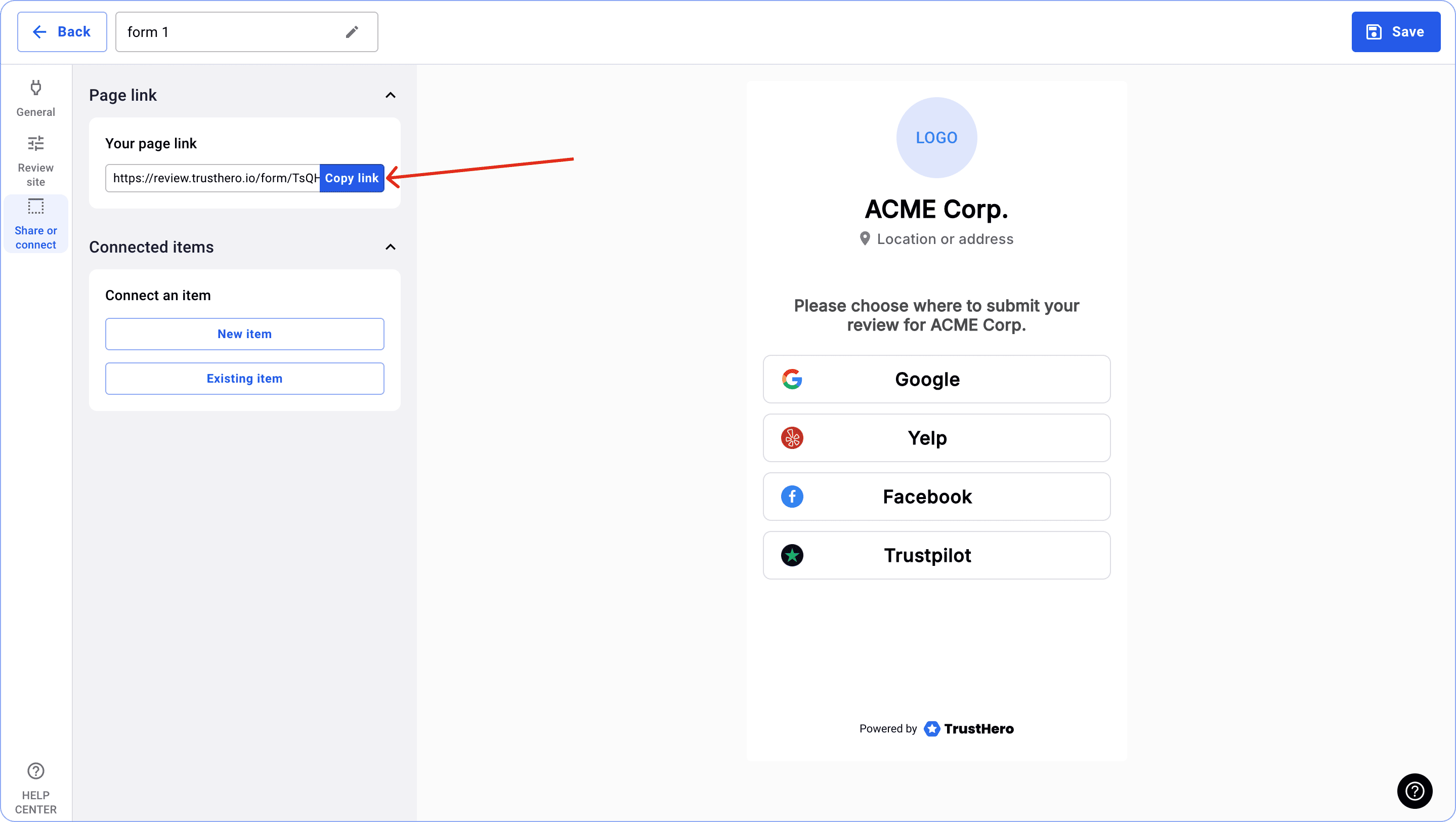
In order to copy the link to your form you need to click Copy link in the top left corner.
Also, you can connect your NFC/QR item to the form.
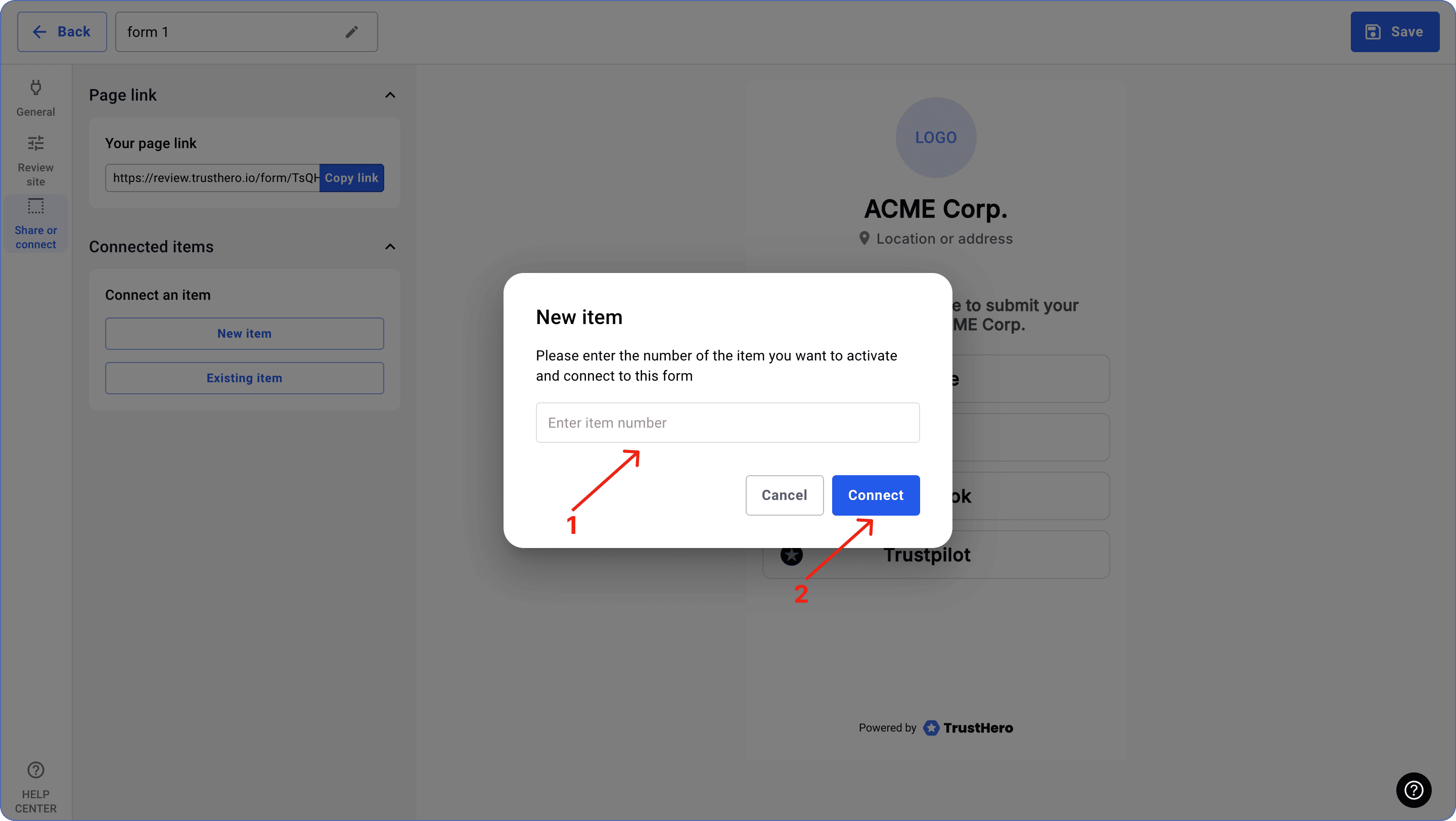
If you have not activated the item yet, select New item.
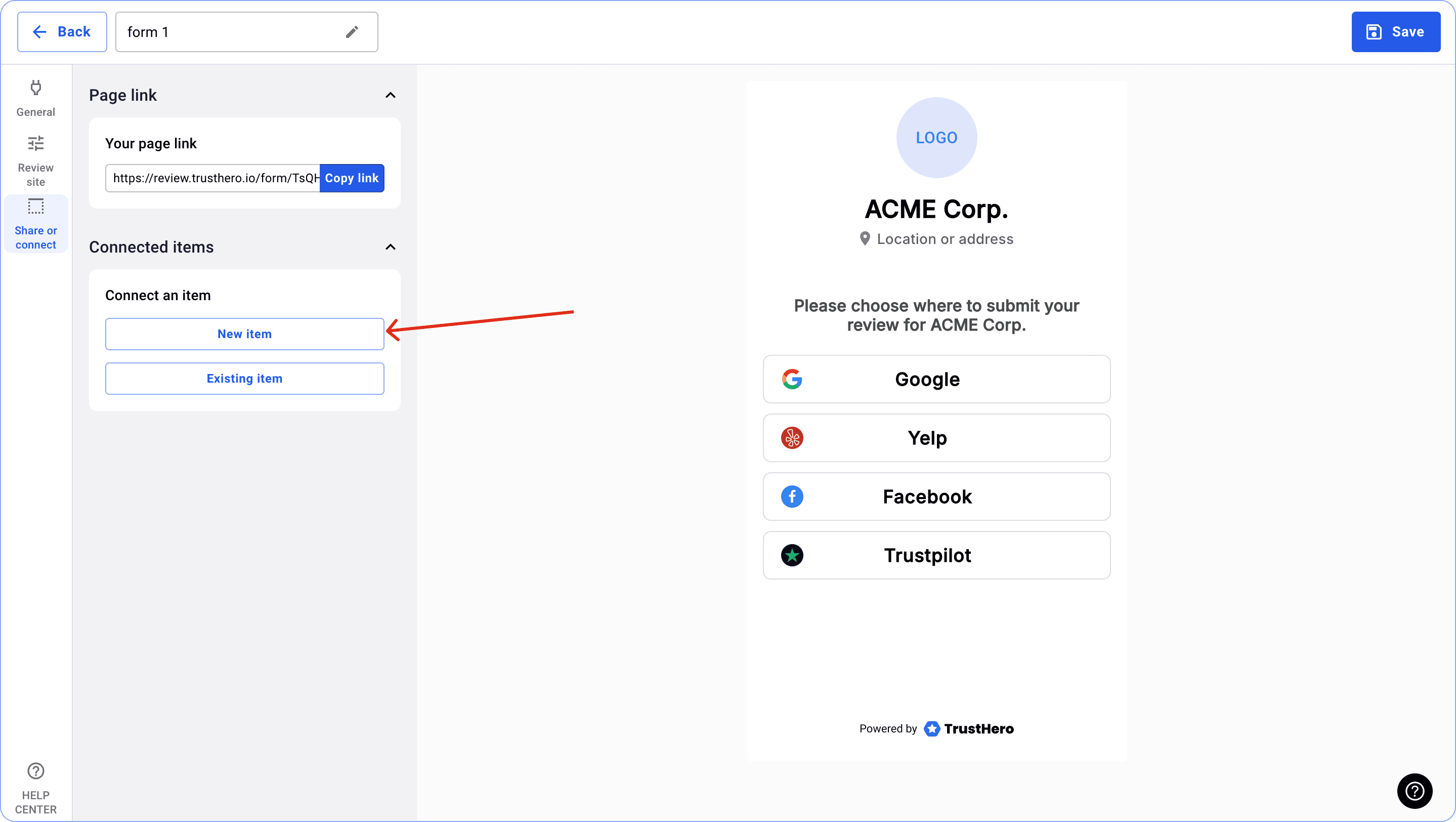
Enter your item number and click Connect.
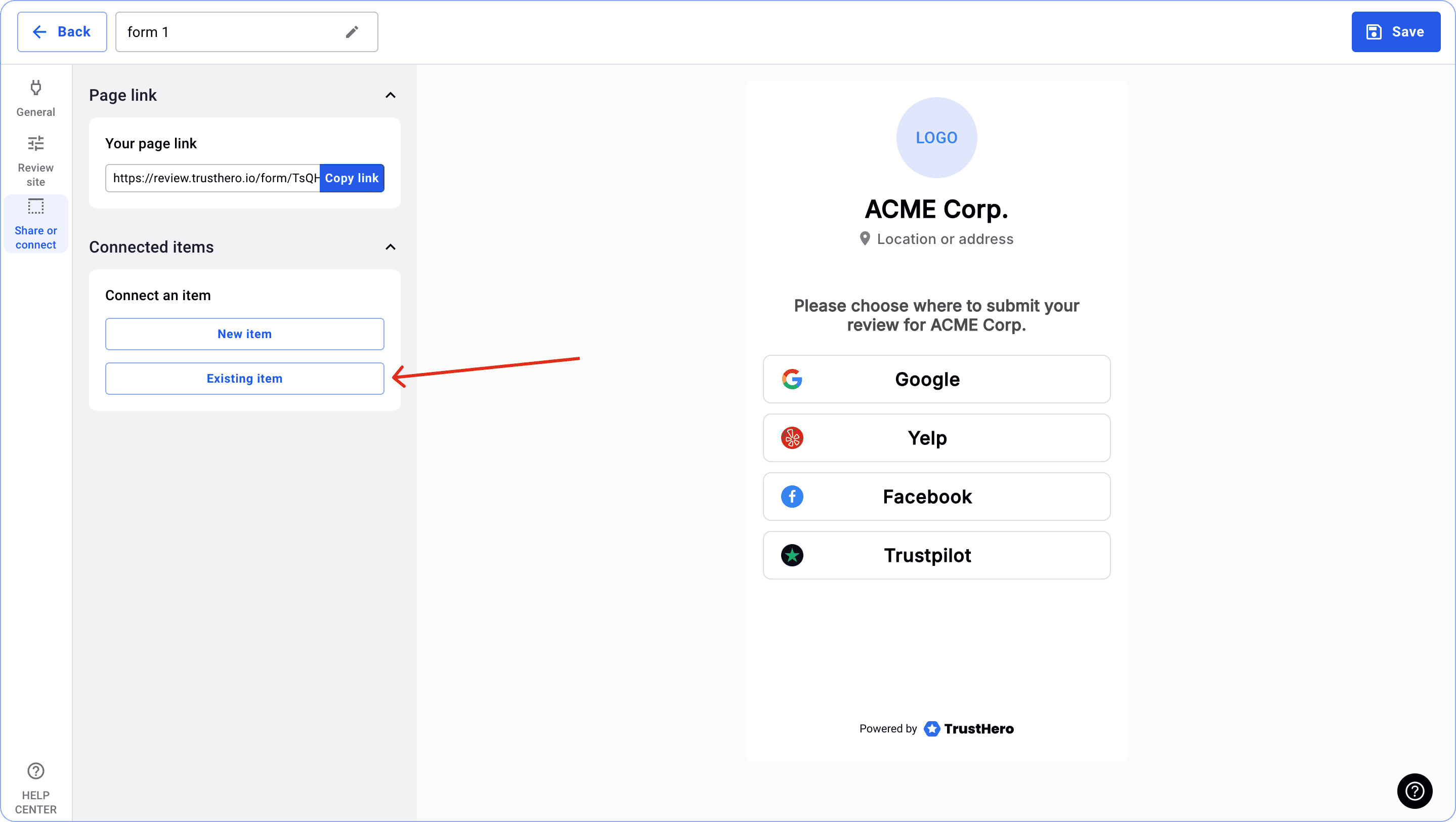
If you need to connect an item that you have previously activated and configured, select Existing item.
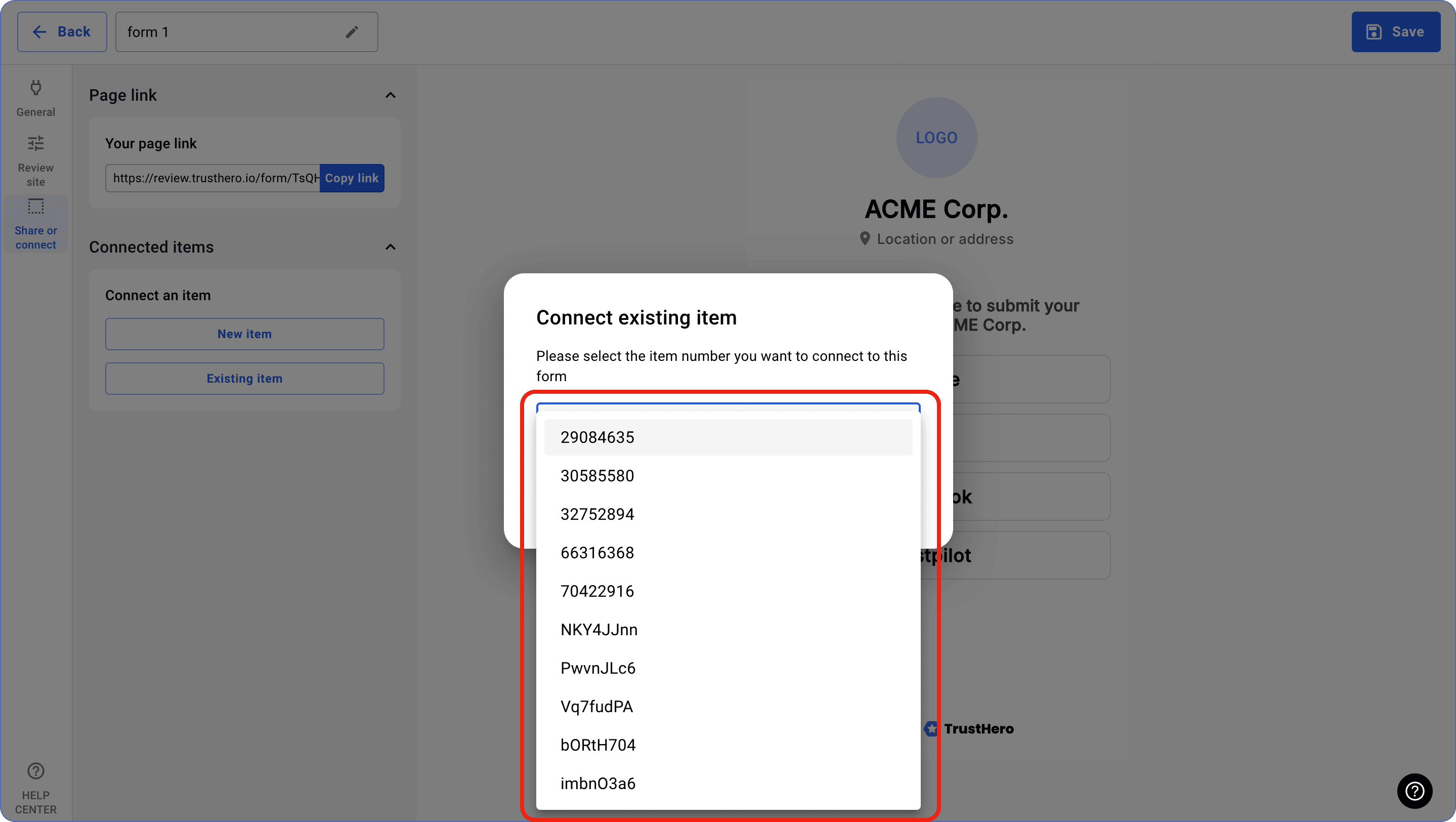
Next, select the number of the item you want to connect to the form.
IMPORTANT: You can connect an unlimited number of items to a single form.
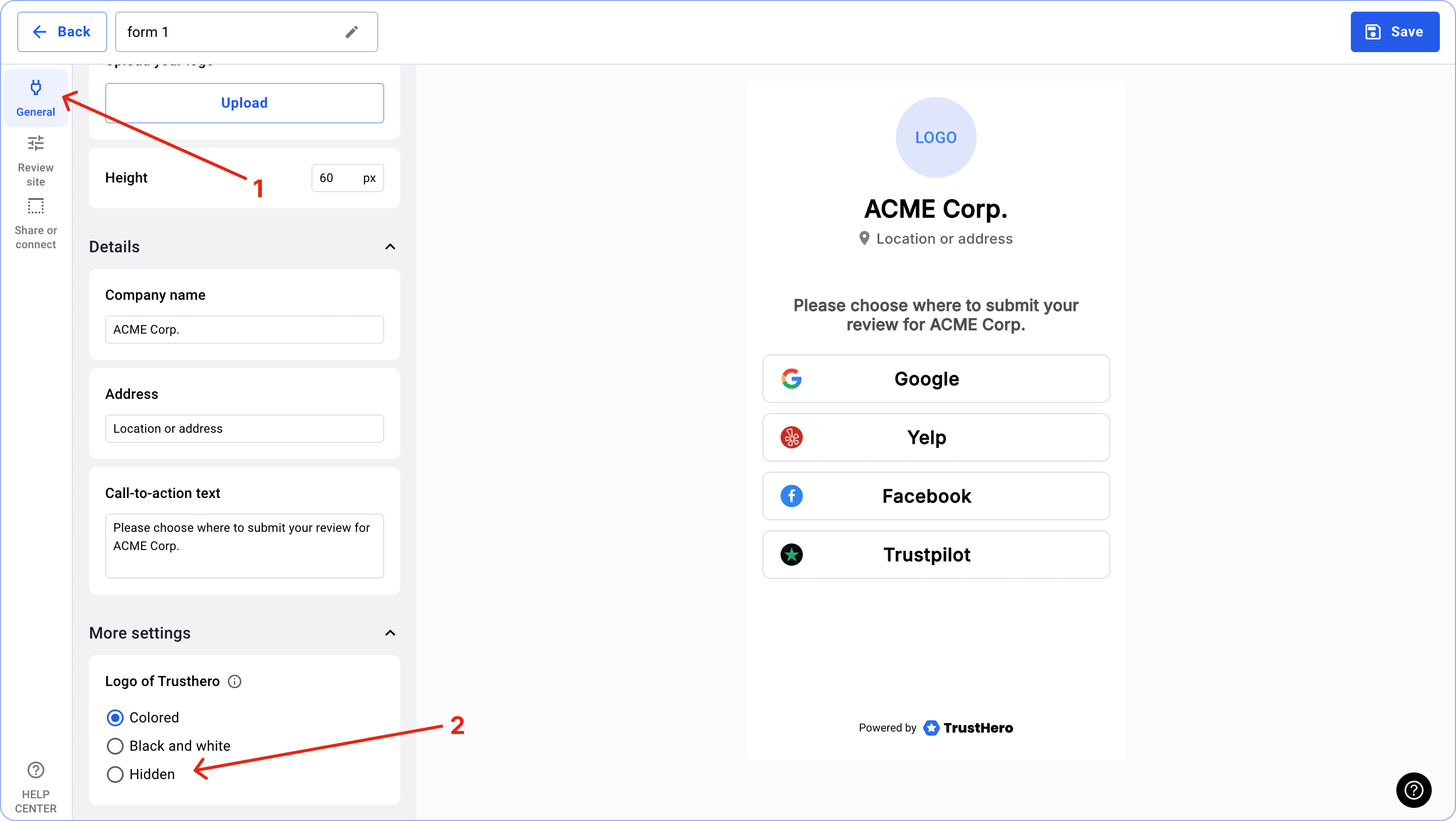
You can switch off the display of the TrustHero logo.
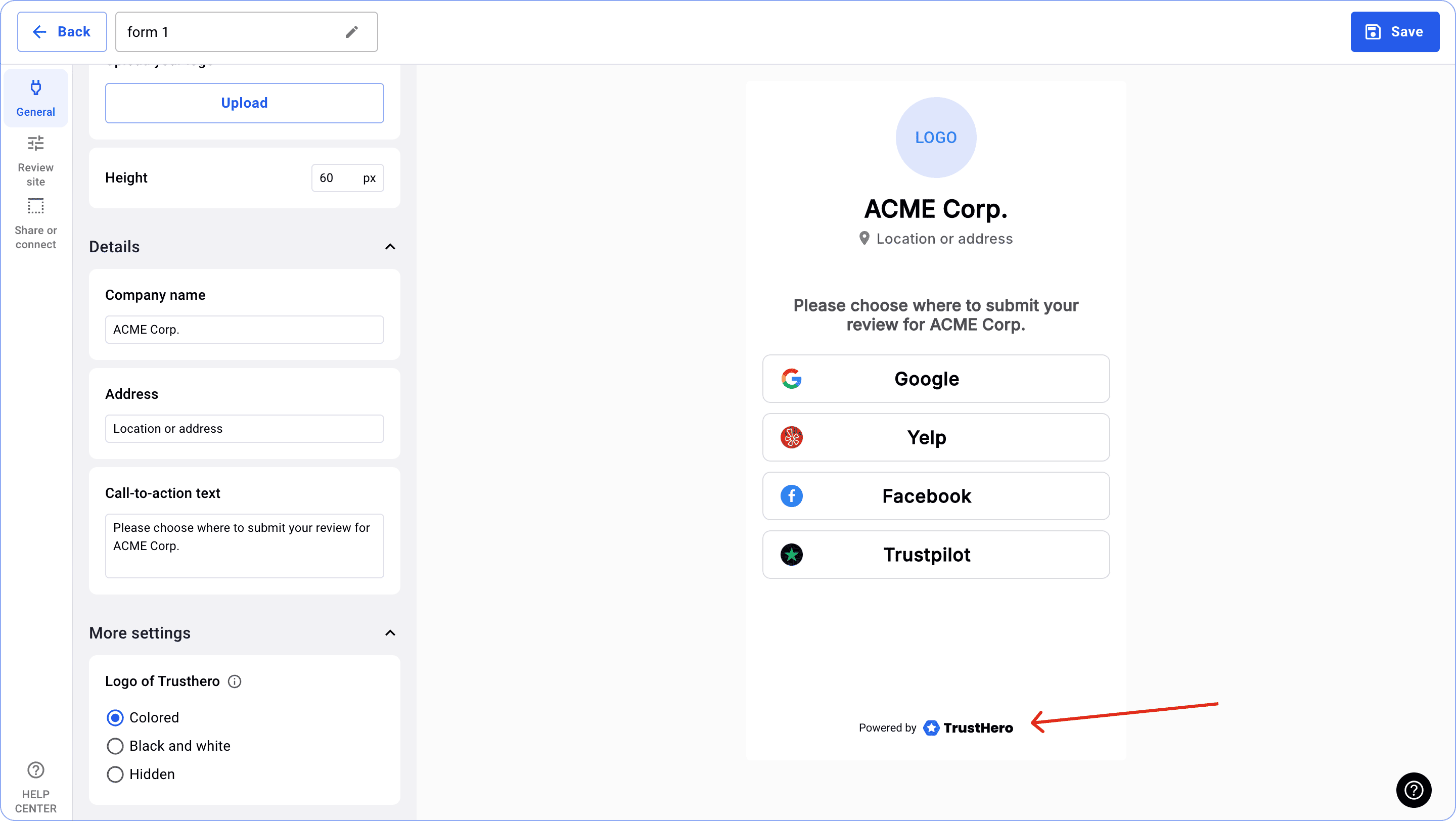
To do this, go to the General tab and at the bottom of the menu select Hidden in the Logo of TrustHero settings block.