How to manage replies to your Google reviews
See every reply AI Agent writes for your reviews, approve it, change it or write your own.
AI Agent replies to your Google reviews for you. Depending on your settings, he publishes some replies on his own and saves others for your approval. On the Reviews page you see every review of your business and what happens with its reply. This guide shows how to approve, edit and publish replies.
Before you start
AI Agent needs to be connected to your Google Business Profile. Not connected yet? See How to activate and set up your AI Agent. Which replies wait for you depends on your reply settings. By default, replies to 4 and 5 star reviews go out on their own, and replies to lower ratings wait for your approval.
Step 1. Open Reviews
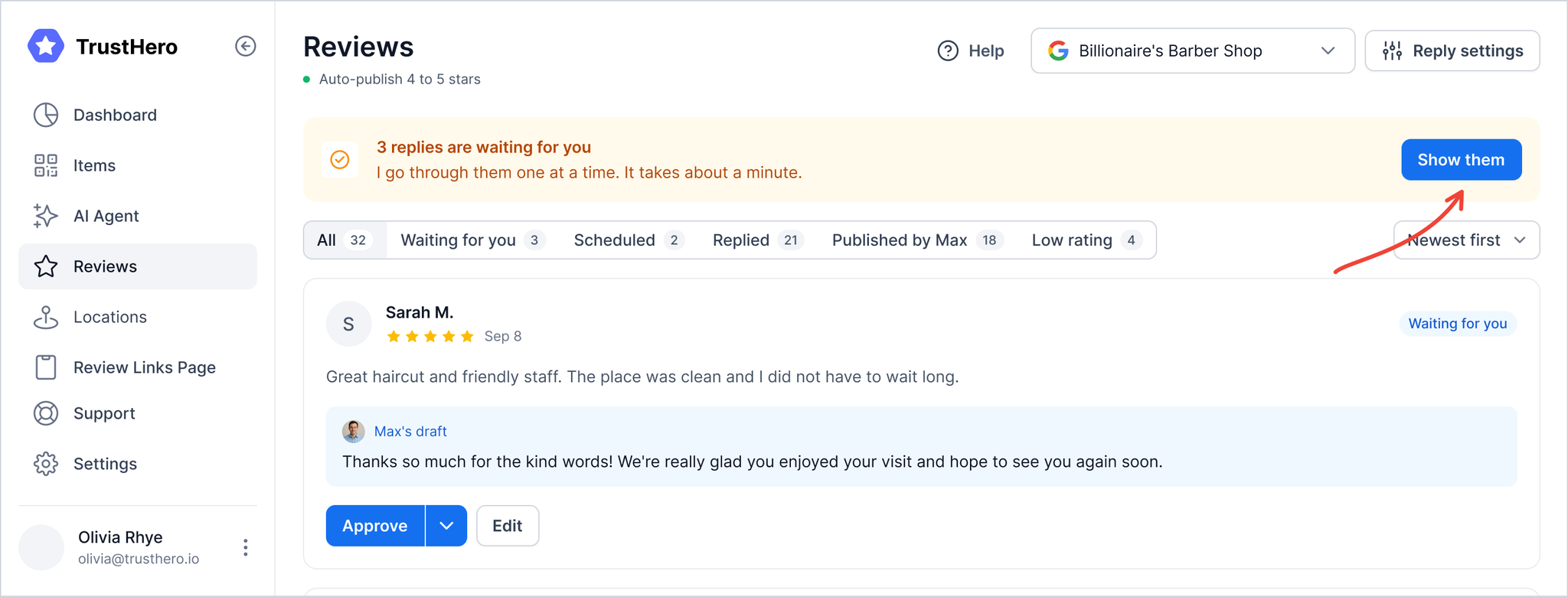
Click Reviews in the menu on the left. If some replies are waiting for you, you'll see how many at the top of the page. Click Show them to see only those reviews.
Step 2. Approve a reply
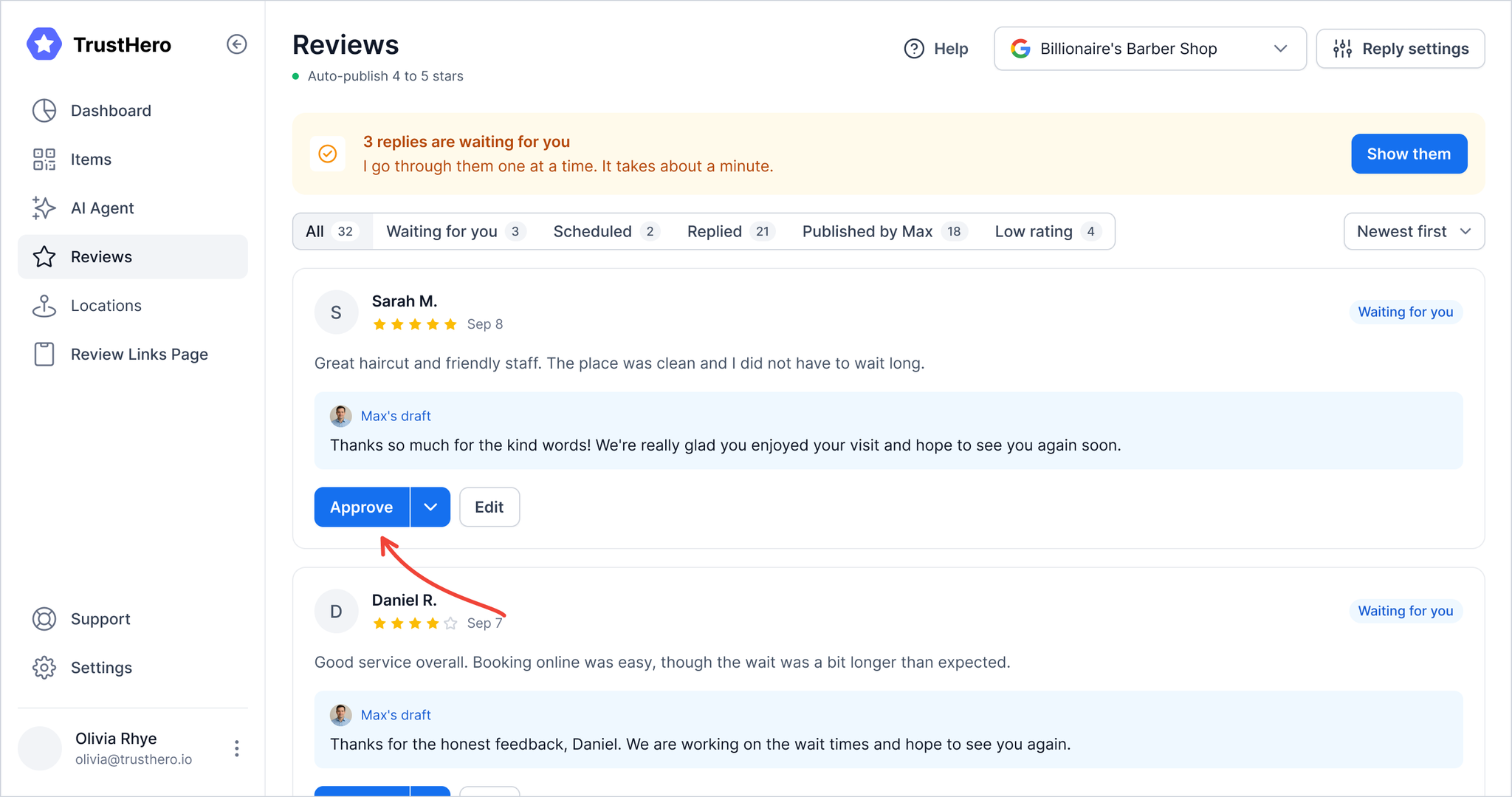
Each review that waits for you shows Max's draft, the reply AI Agent wrote. Read it and click Approve. The reply goes into the queue, and AI Agent publishes it on Google shortly. The review is now marked Scheduled.
Step 3. Publish a reply right away
This step is optional. Want the reply on Google now? Click the arrow next to Approve and choose Publish now. Before publishing, AI Agent checks the review once more. When the reply is out, you'll see Reply published.
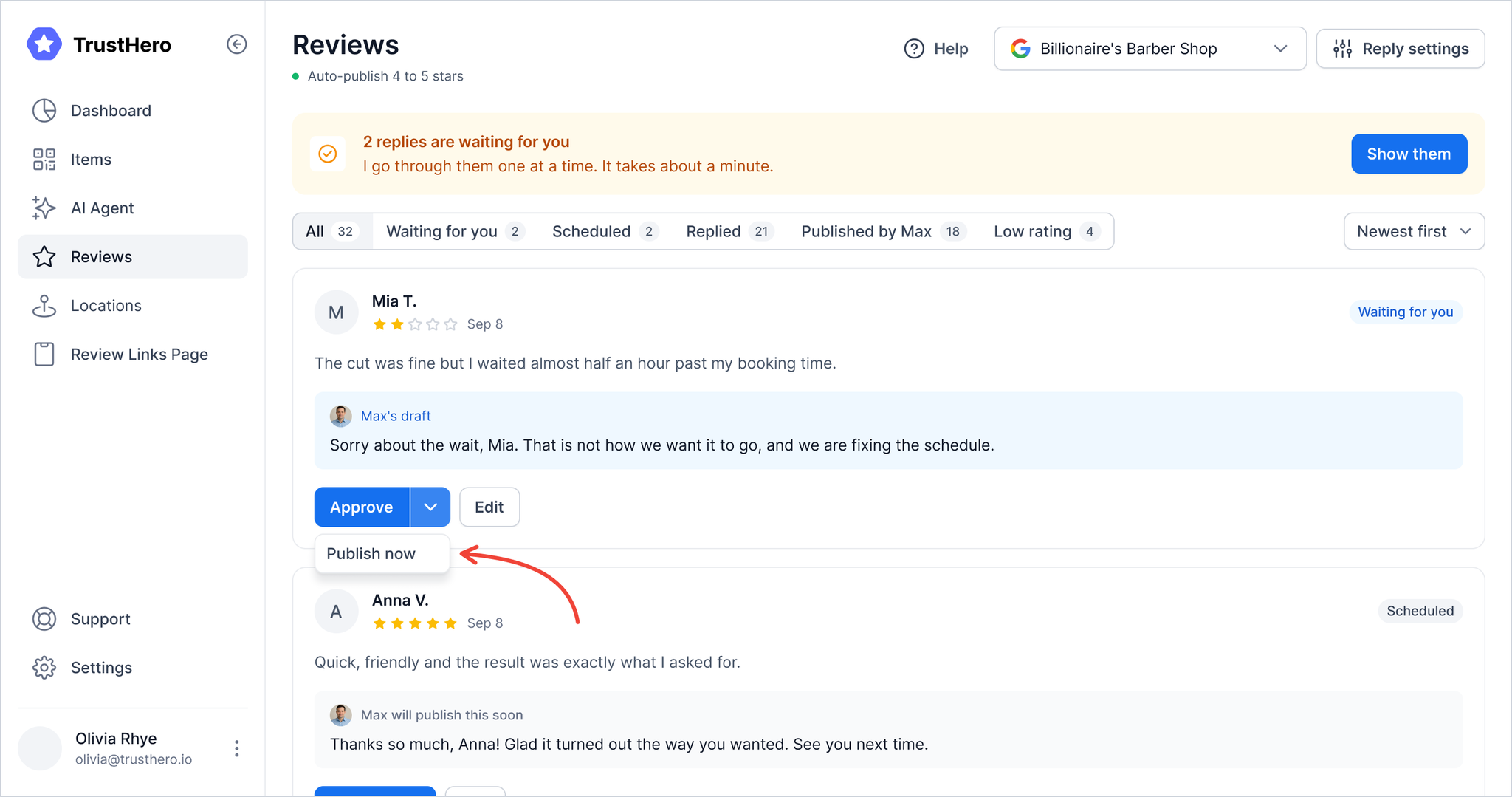
A reply marked Scheduled can go out right away too: click Publish now on its card.
Step 4. Edit a reply
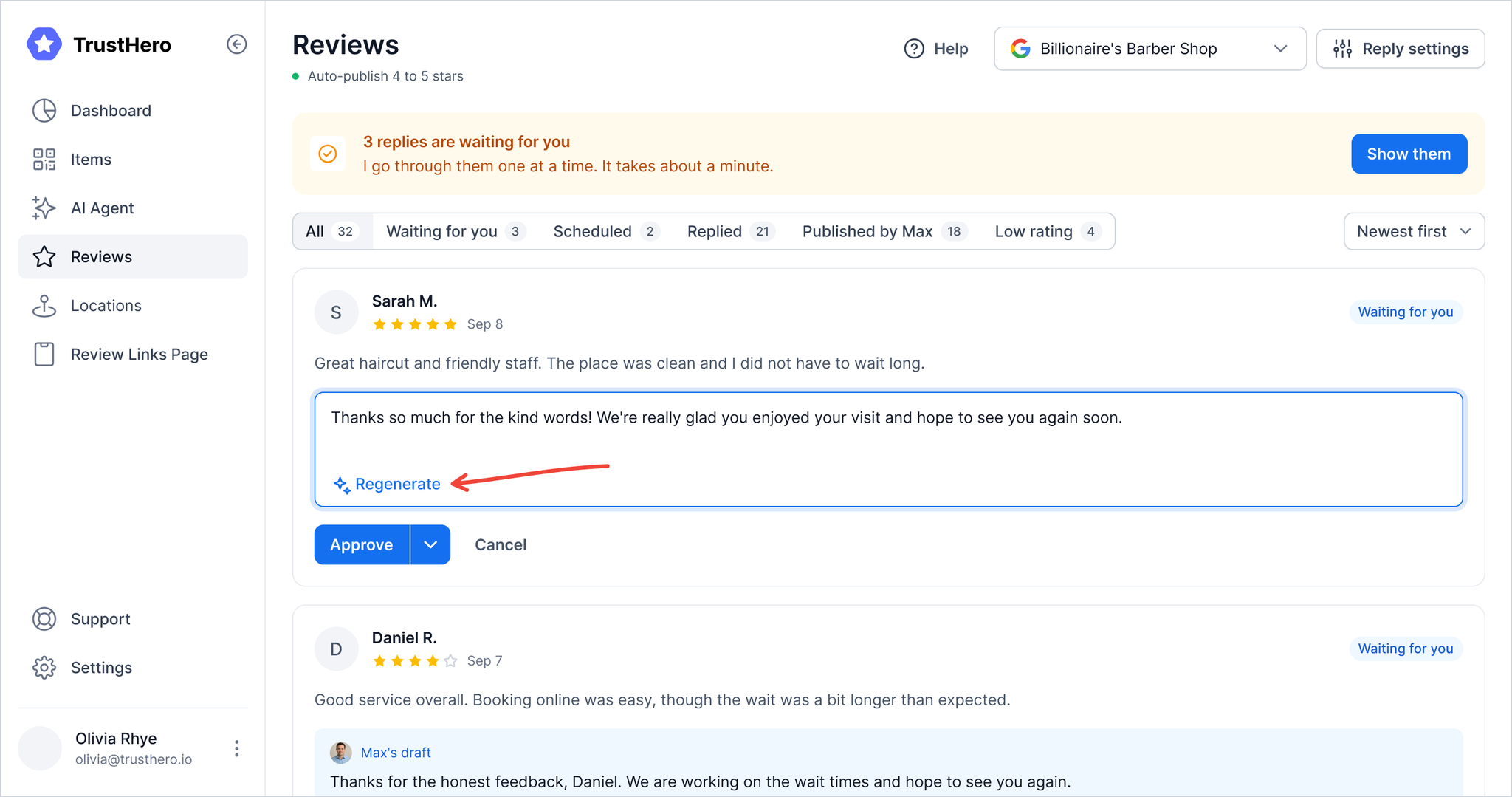
Click Edit and change the text right in the card.
Want a new version from AI Agent? Click Regenerate.
Liked the previous text more? Click Undo.
Done? Click Approve, or choose Publish now under the arrow.
Changed your mind? Click Cancel, nothing is saved.
You can edit a reply that's already on Google too: click Edit reply. Your new text replaces the old one on Google.
Reply to a review yourself
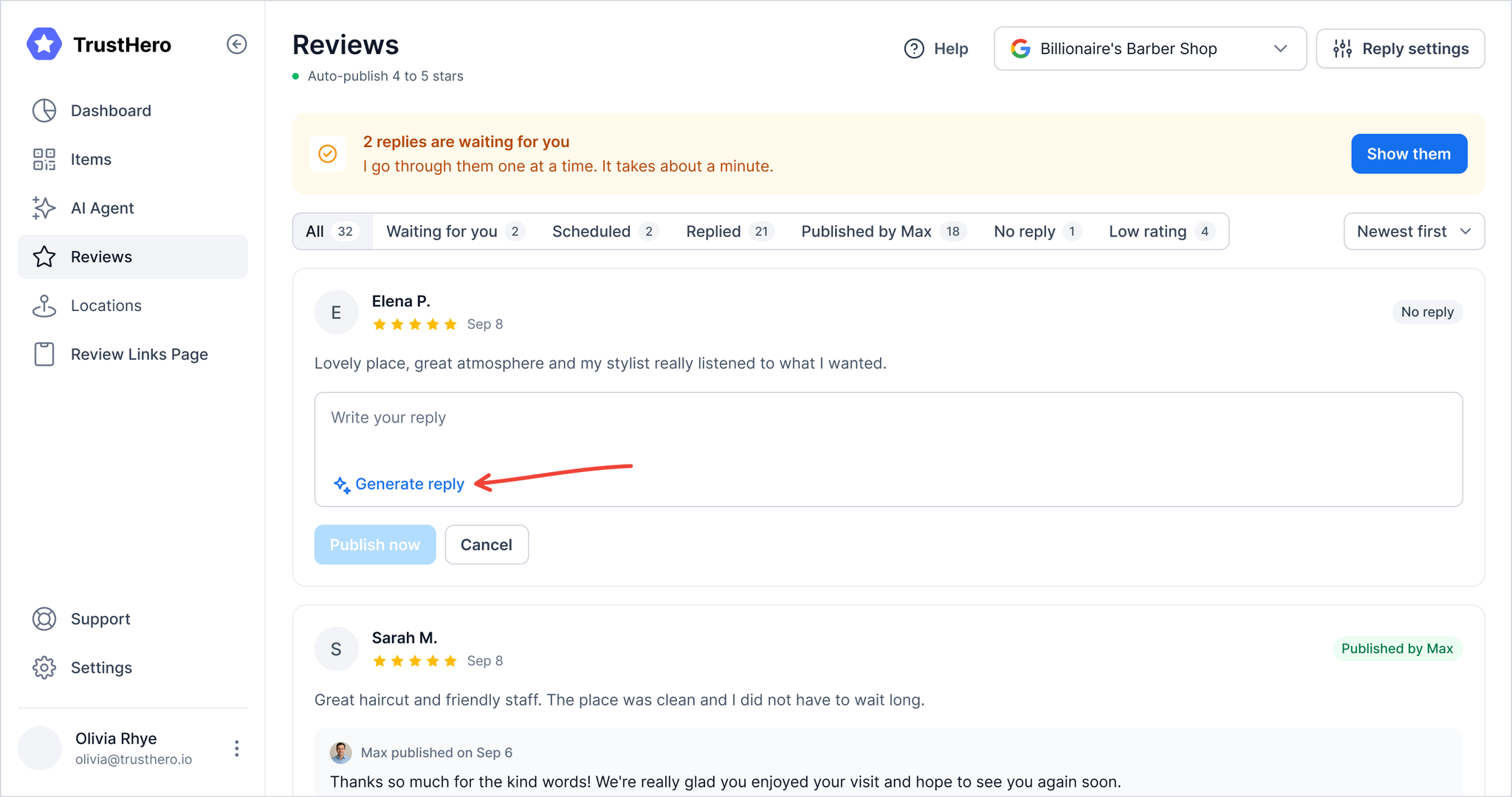
Reviews marked No reply don't have a reply from AI Agent. Click Reply, then write your own reply or click Generate reply and AI Agent writes one for you. When the text is ready, click Publish now.
What the labels on a review mean
Processing — AI Agent is writing a reply.
Waiting for you — the reply is ready and waits for your approval.
Scheduled — the reply is approved, AI Agent will publish it shortly.
Published by Max — AI Agent published the reply without changes.
Published by you — you edited or wrote the reply.
No reply — the review has no reply yet.
Deleted — the reviewer removed the review from Google.
Choose which replies wait for you
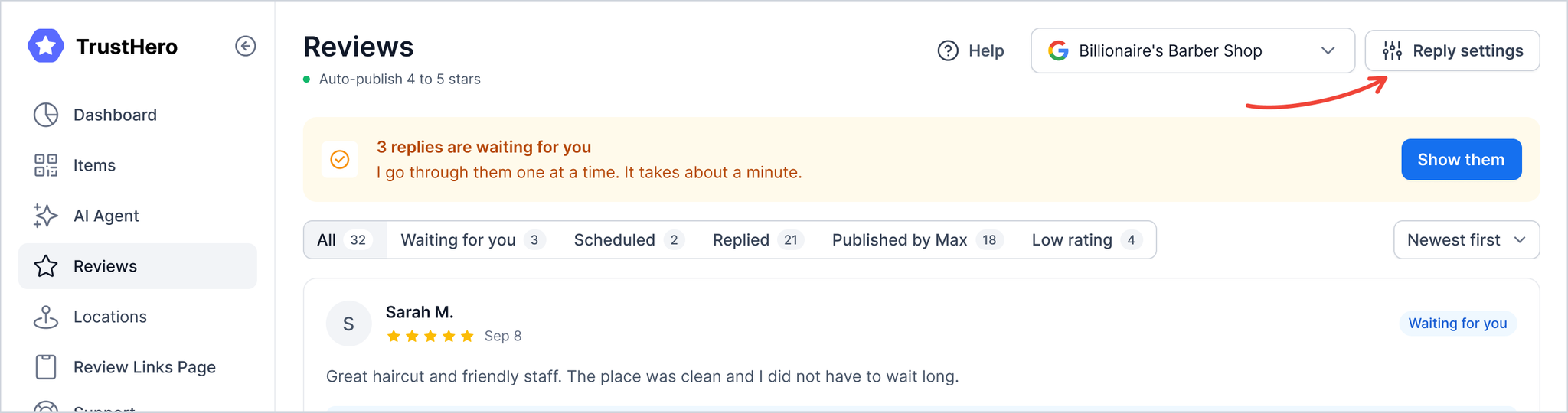
Click Reply settings at the top of the page. There you choose which replies AI Agent publishes on his own and which wait for you.
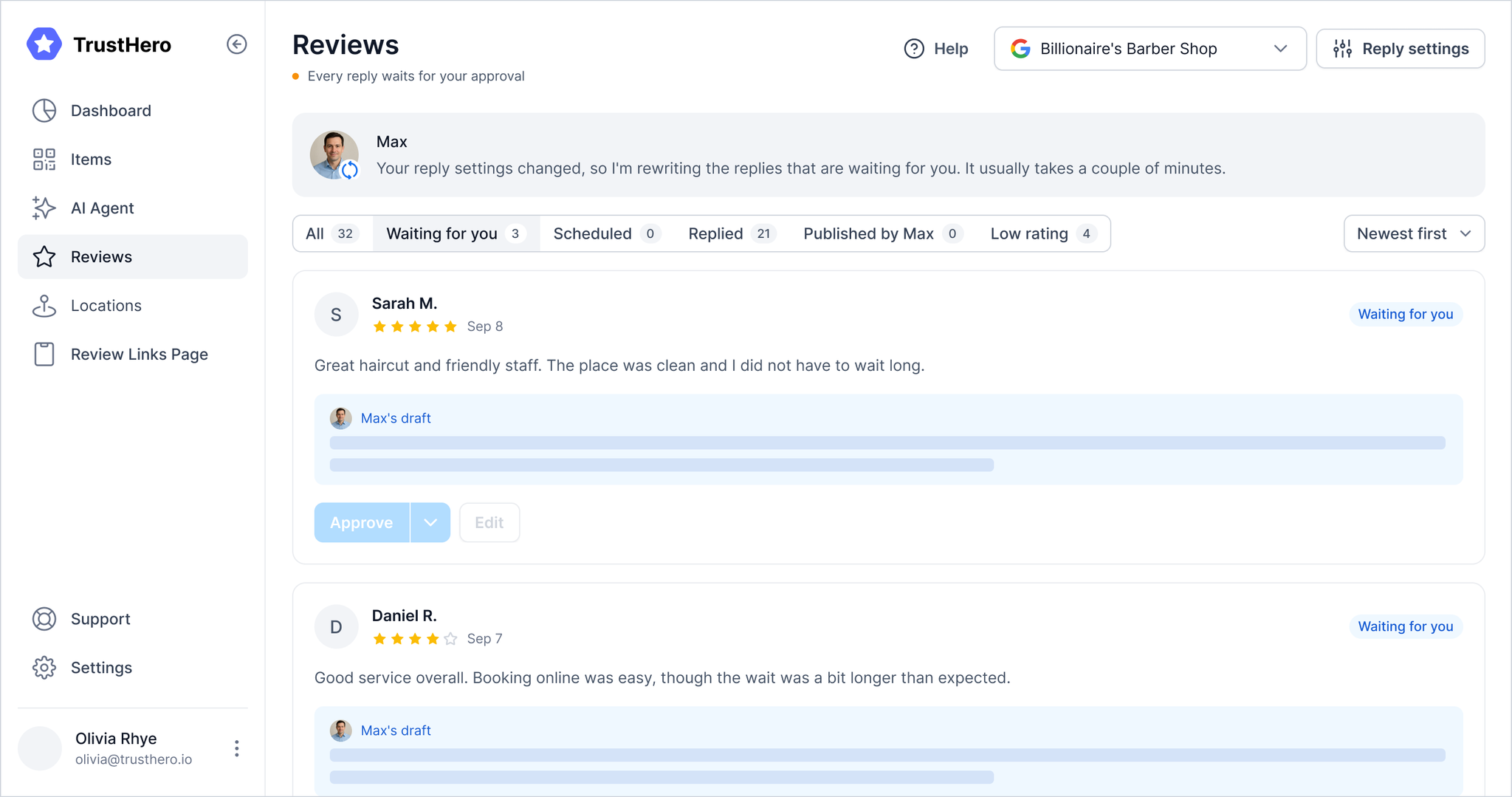
After you change the settings, AI Agent rewrites all replies that are still waiting, so they match the new settings. While he's working, you'll see a message from him at the top, and these replies are greyed out. When he's done, the new replies appear in the same cards.
If replies are paused
When replies are paused, you'll see Replies are paused at the top. AI Agent keeps collecting your reviews, but doesn't write or publish replies. Click Turn replies back on to start again. AI Agent then goes through the reviews that came in while replies were paused.
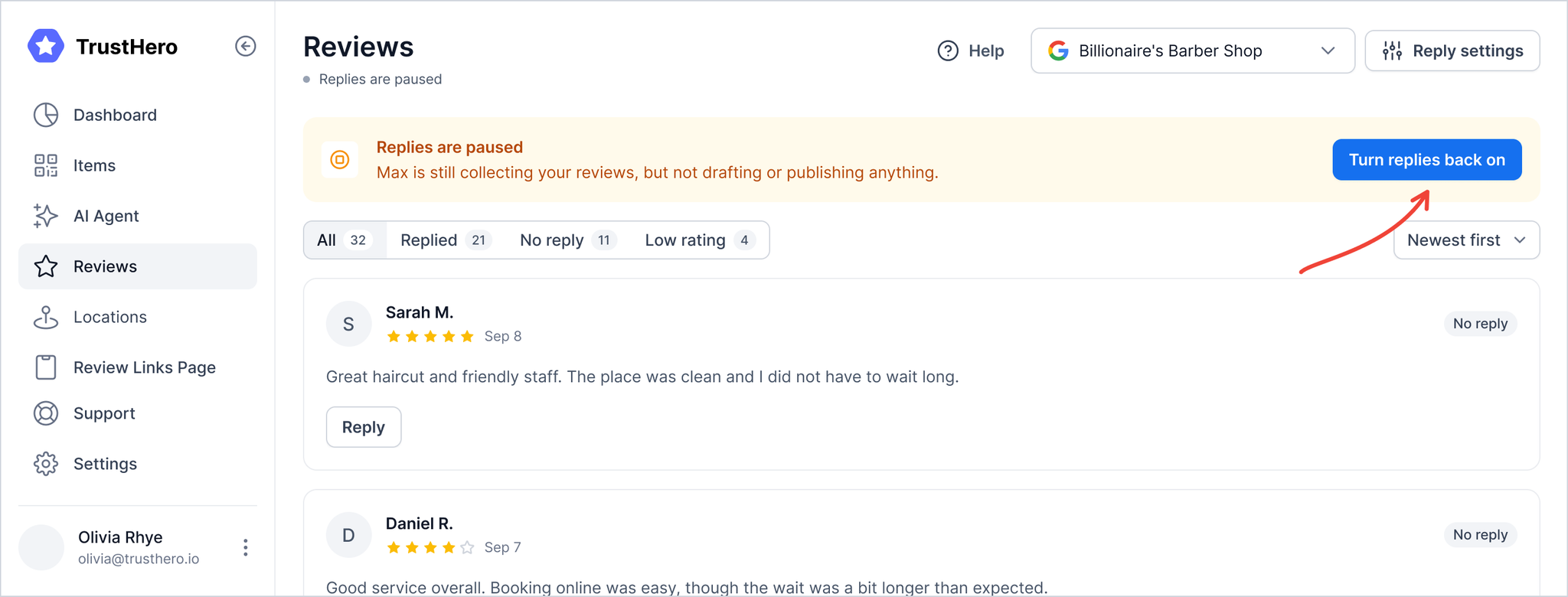
While replies are paused, you can still reply yourself with Reply, but Generate reply isn't available.
If something changed before your reply went out
Before a reply goes to Google, AI Agent checks the review again. If something has changed, nothing is published and the card shows what happened.
"Review edited". The reviewer changed the review. AI Agent wrote a new reply for the new text, you'll see it as Max's new draft. Approve it, or edit it first.
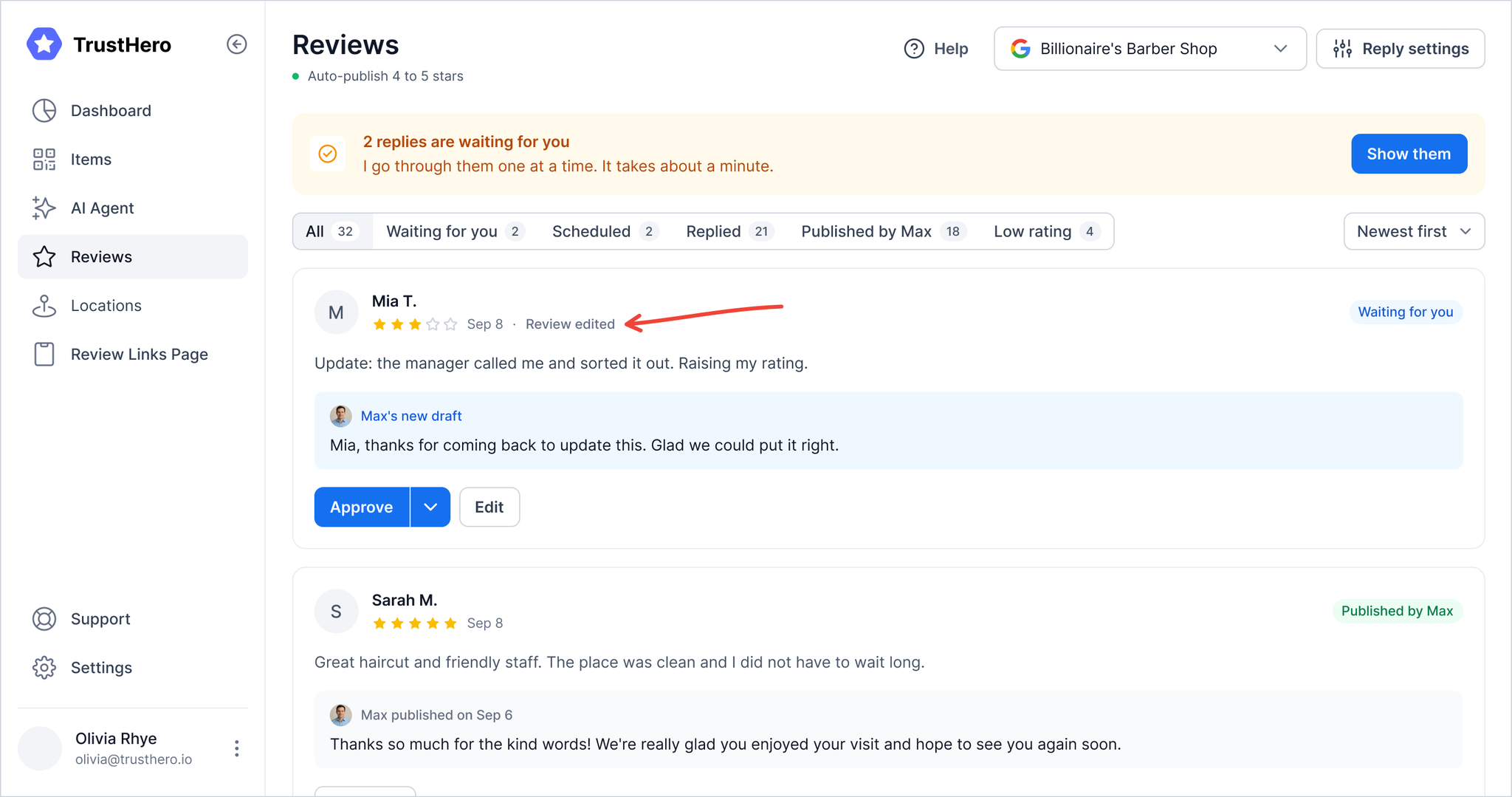
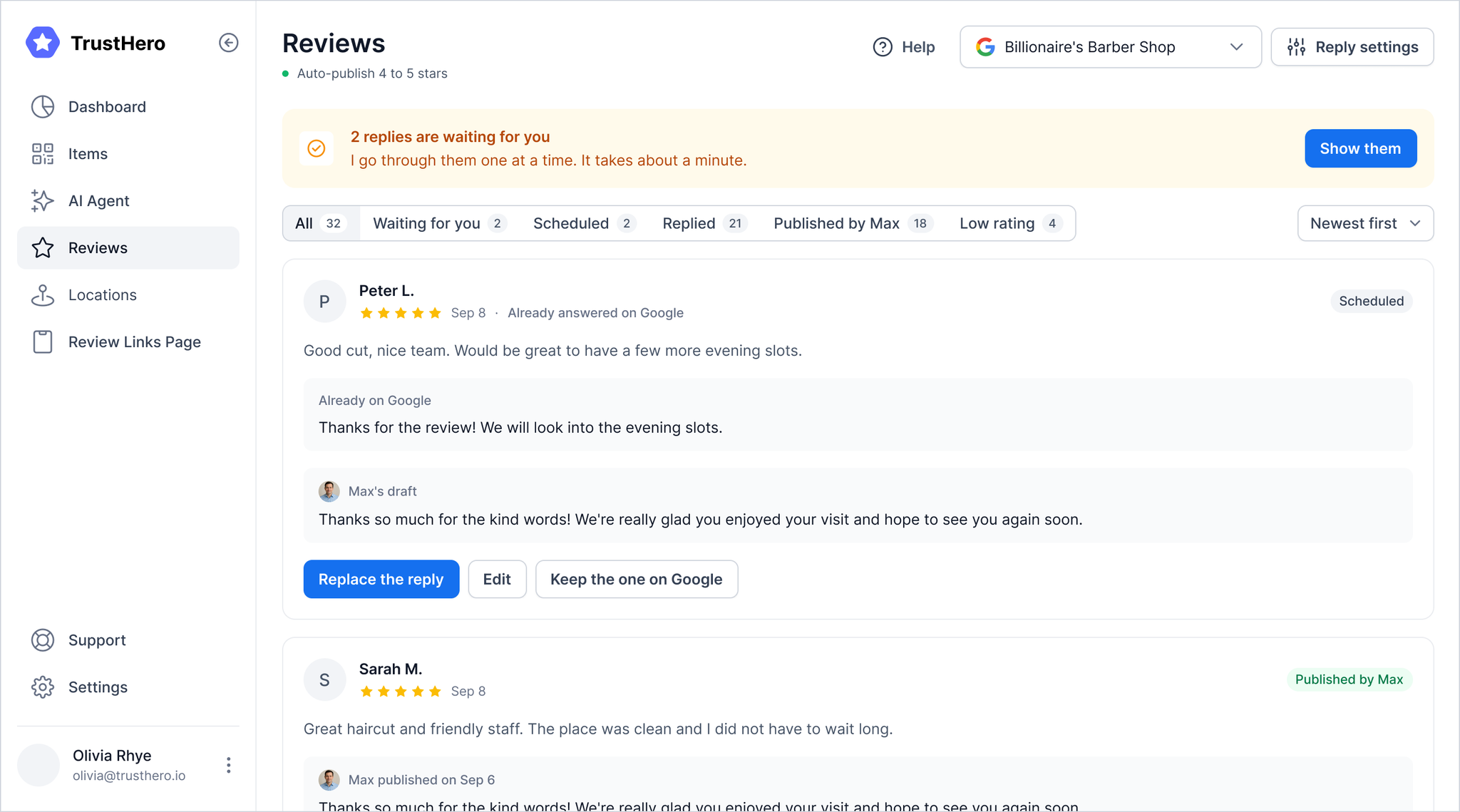
"Reply settings changed". Your reply settings changed after the reply was written. AI Agent rewrote it to match. The review waits for your approval again. "Already on Google". This review already has a reply on Google, for example one you wrote yourself. Google keeps only one reply per review. Click Replace the reply to publish AI Agent's reply instead, Edit to change it first, or Keep the one on Google to leave the existing reply as it is.
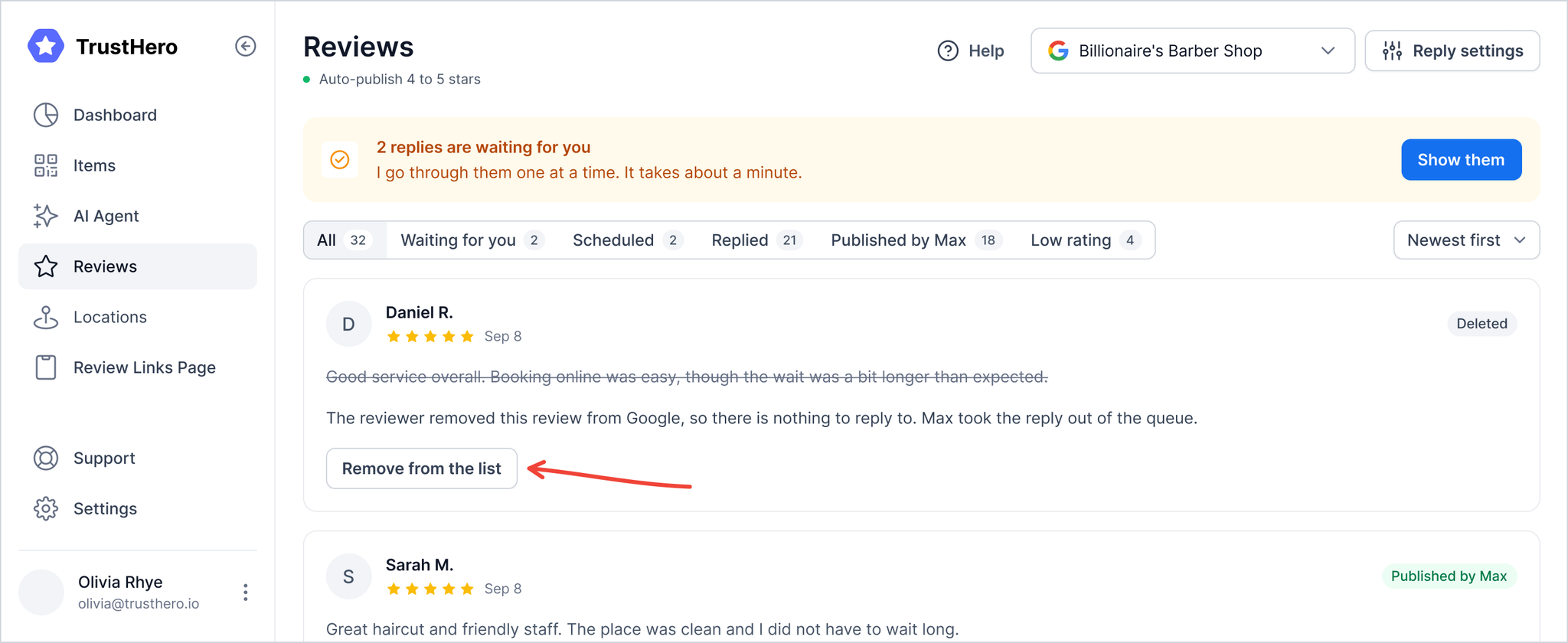
"Deleted". The reviewer removed the review from Google, so there's nothing to reply to. AI Agent took the reply out of the queue. Click Remove from the list to hide the review.
If something goes wrong
"Couldn't write the text. Please try again." AI Agent couldn't finish the reply. If part of the text came through, it stays in the field. Click Regenerate or Generate reply to try again.
"This reply is too long for Google. Shorten it a little." Google limits how long a reply can be. Shorten the text until the message disappears.
Publish now is greyed out. There's nothing to publish yet: the field is empty, AI Agent is still writing, something went wrong, or the text is too long.
FAQ
Does AI Agent reply to every review?
He writes a reply for every new review. If a review is marked No reply, you can reply to it yourself with Reply.
Will AI Agent change a reply I wrote myself on Google?
No. If you replied to a review yourself on Google, AI Agent leaves it alone.
How do I know who published a reply?
Look at the label on the review: Published by Max or Published by you.
Can I stop AI Agent from publishing replies on his own?
Yes. In Reply settings you can choose to approve every reply yourself or pause replies.
How long can a reply be?
Up to Google's limit, which is about 4,000 characters in English. Most replies are much shorter.
Still need help?
Contact our support team, we're happy to help.