How to connect more locations to AI Local SEO Agent
Edited
To manage more than one location with the AI Local SEO Agent, you need to add extra locations from the location selector in the top-right corner.
Step 1. Check your plan
Your plan includes a specific number of locations.
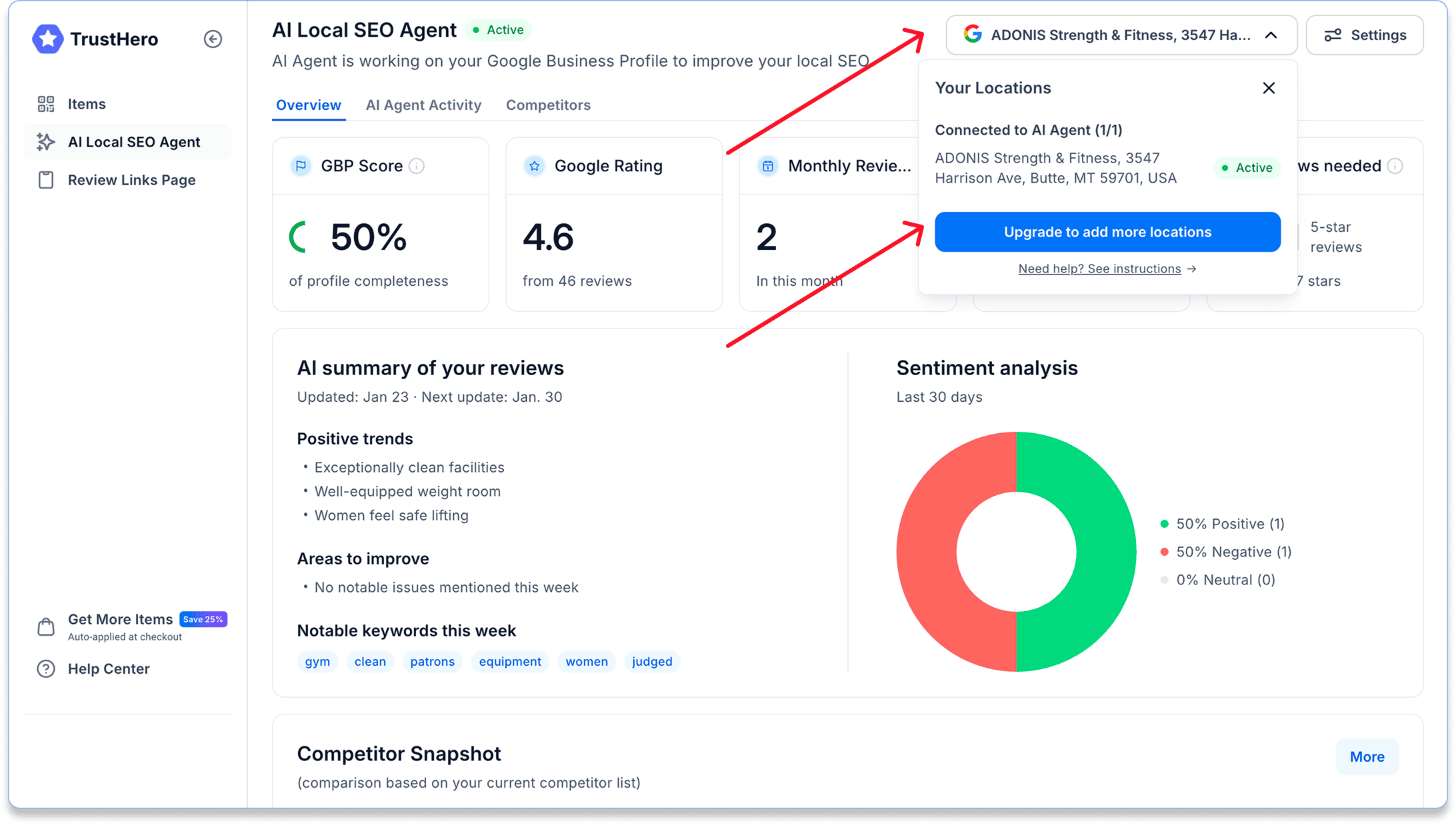
If your current plan includes only 1 location, you’ll need to upgrade to a plan with more locations before you can add them.
Step 2. Choose how many locations you need
Open the location selector in the top-right corner.
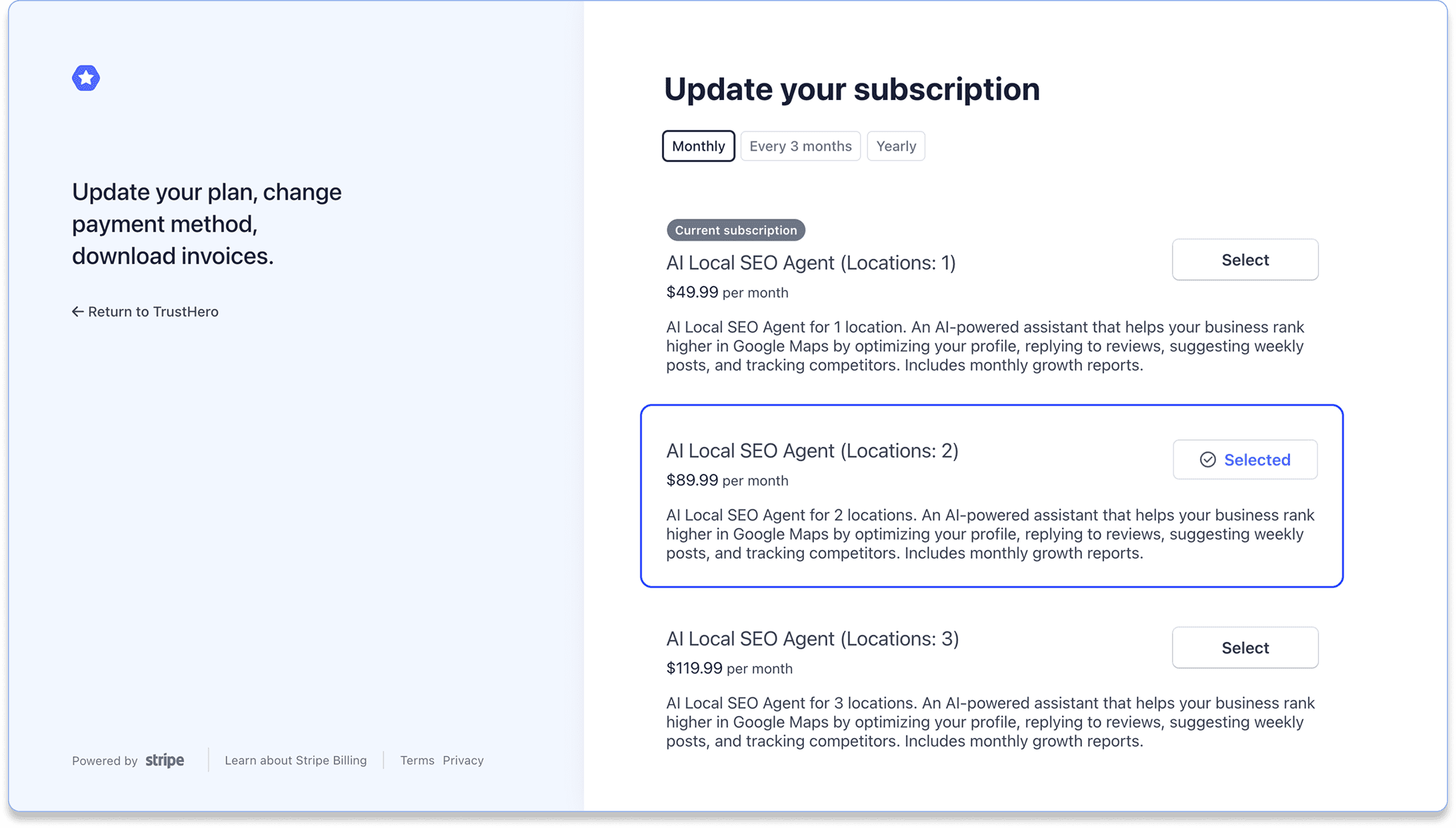
Select the number of locations you want the AI Agent to manage.
Confirm your choice at the bottom of the screen.
Step 3. Activate the AI Agent for another location
In the top-right filter, select Activate AI Agent for another location.
Add a new location and confirm.
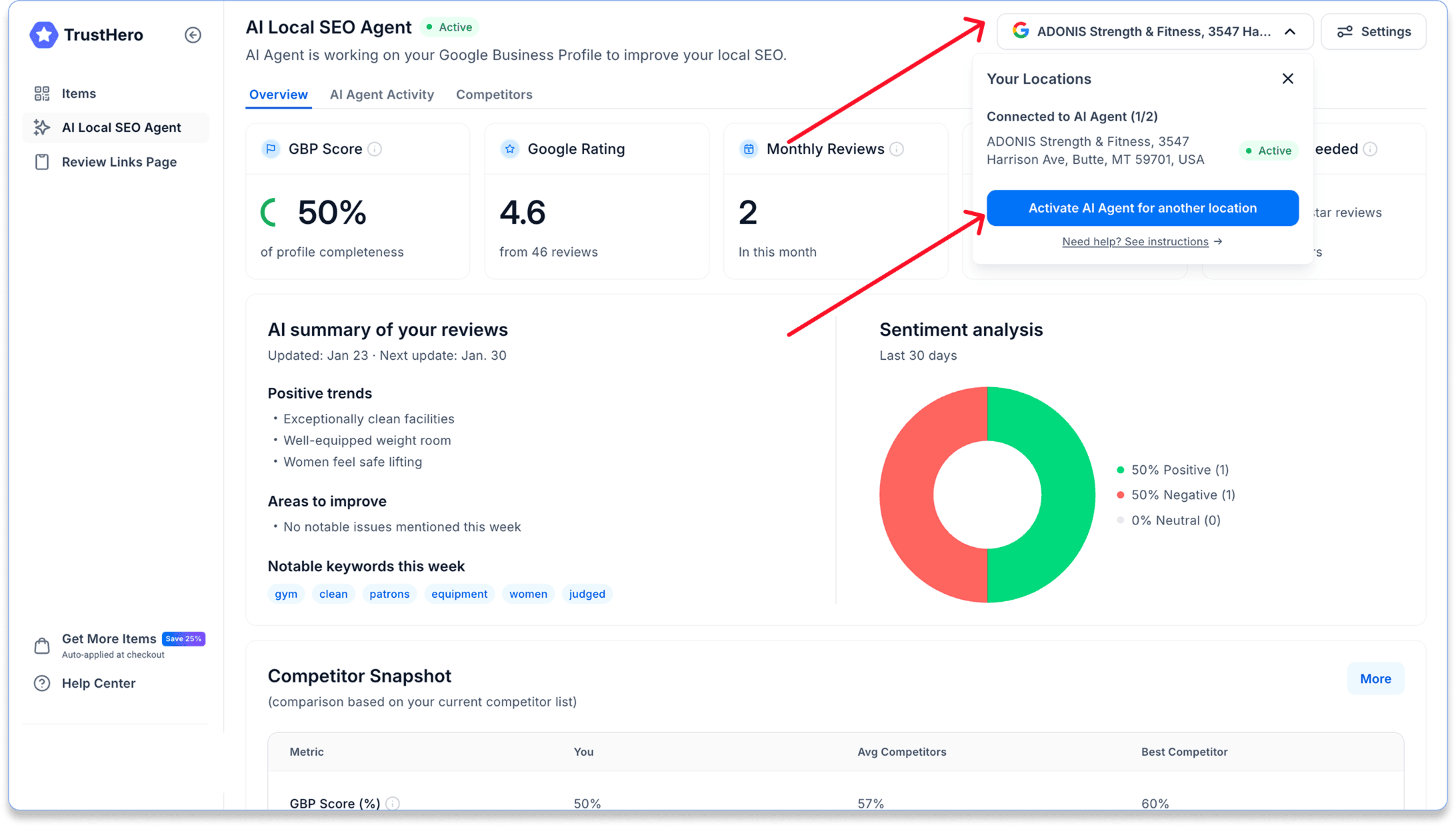
After that, your new location will be connected and ready to be managed by the AI Local SEO Agent.
Was this article helpful?
Sorry about that! Care to tell us more?